
How to set up a project with WTFM
Updated about 2 months ago
Browse All
Run wtfm init once in the folder you want to document, and WTFM knows where your articles go, which model writes them, and what your product looks like. It takes a few minutes, and after that you just ask your coding agent for an article.
Before you start
-
WTFM set up on this computer — run
wtfm setuponce if you haven't already - A terminal open in your product's folder, with git and Claude Code or Codex available
- A SupportPages.io account if you want articles in a help centre (saving them in the project needs no account)
Steps
Run wtfm init in your project
Open a terminal in your product's folder and run:
cd path/to/your-product
wtfm init
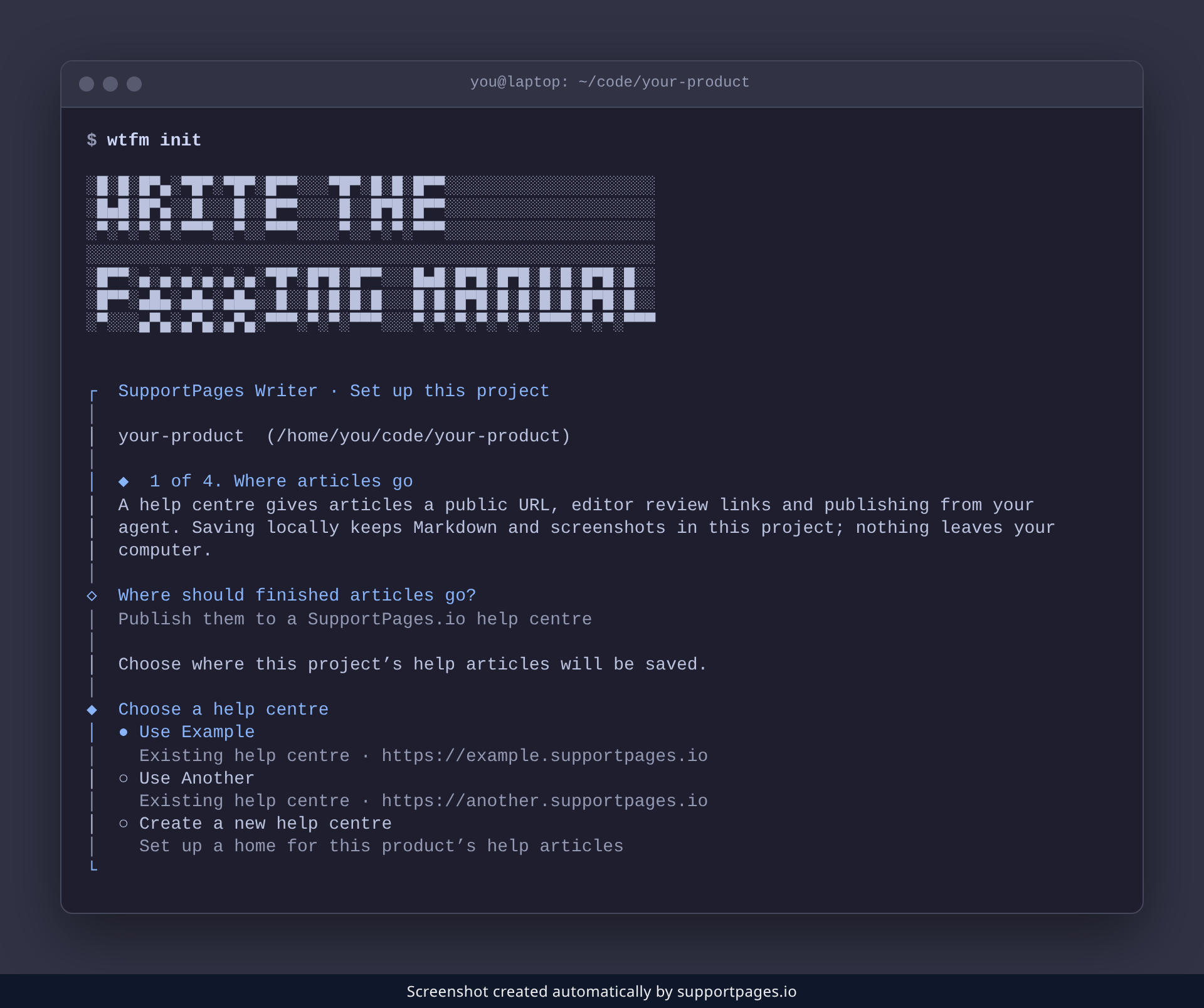
WTFM greets you with SupportPages Writer · Set up this project and shows the folder it found.
Choose where articles go
WTFM asks Where should finished articles go?. Choose Publish them to a SupportPages.io help centre to give your articles a public URL and editor review links.
Link your help centre
Sign in to SupportPages.io when WTFM asks, then choose this project's help centre from the list. Don't have one yet? Pick Create a new help centre and give it a name.
Pick the model that writes your articles
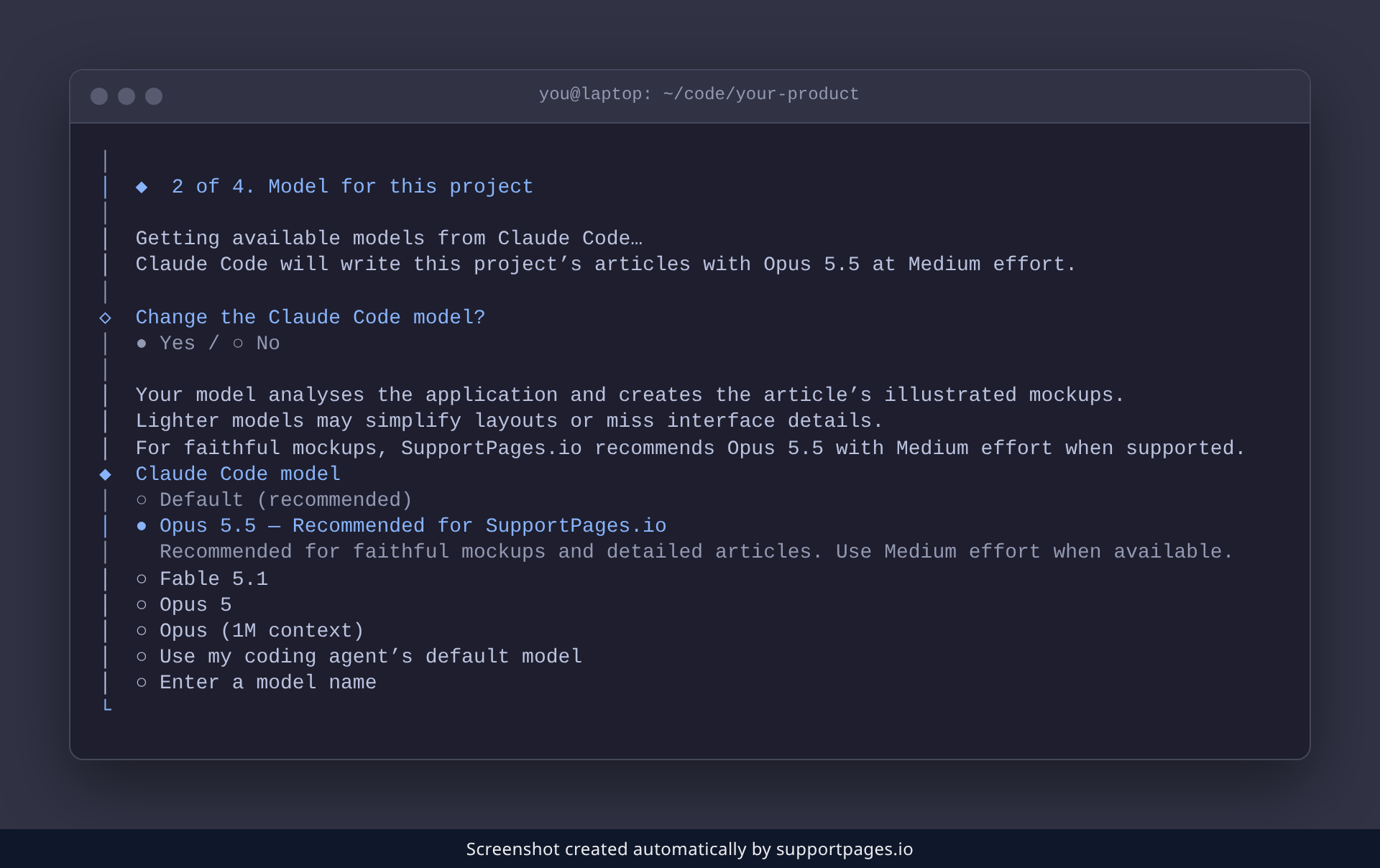
WTFM shows the model Claude Code will use. Answer yes when it offers to change it, then choose the model marked Recommended for SupportPages.io and the Medium reasoning effort it suggests.
Let WTFM read your project
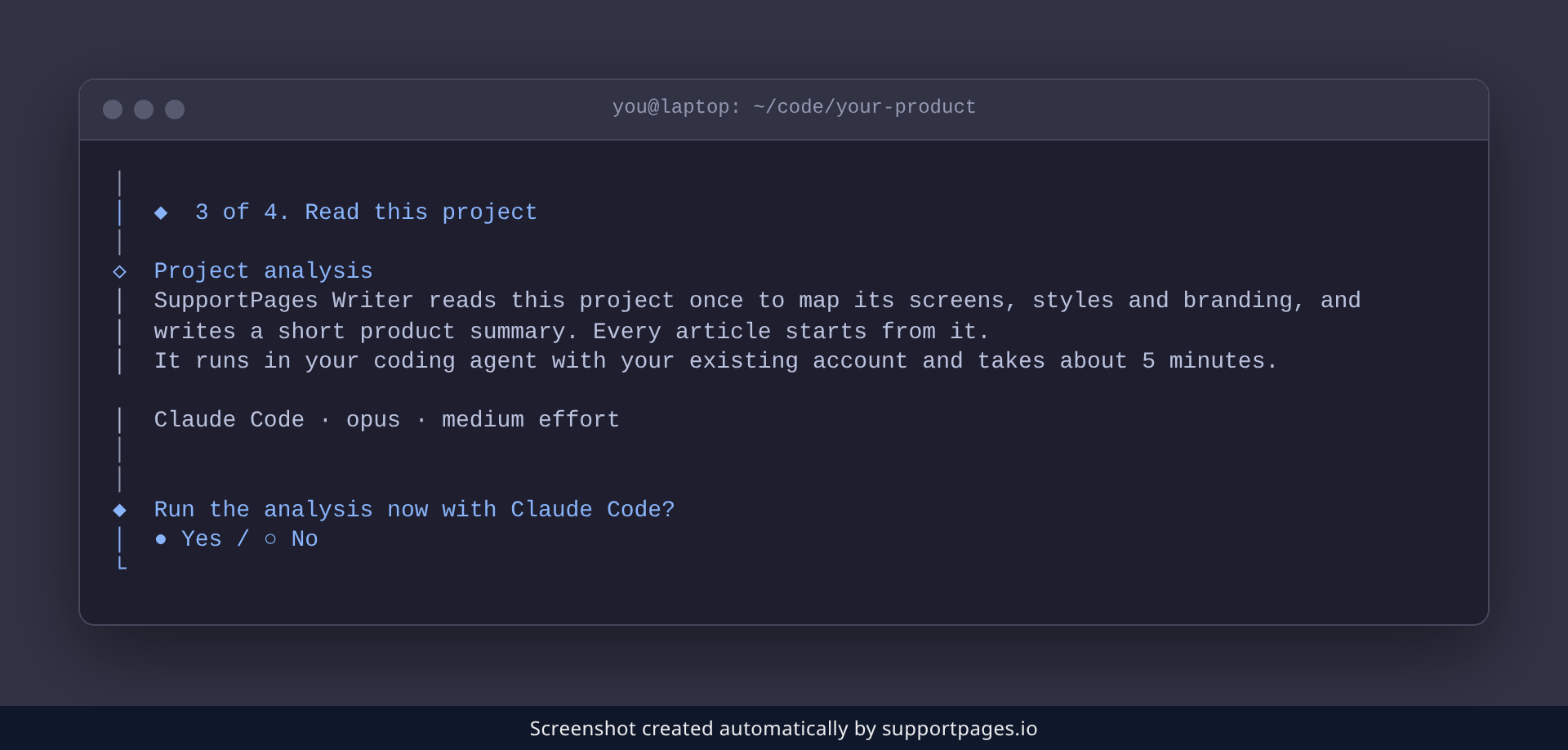
Next, WTFM offers to run the Project analysis: it reads your project once to map its screens, styles and branding, and every article starts from what it finds. Say yes, and about five minutes later you'll see Project analysis is ready.
Tips
-
Change the model, writing style or article folder later with
wtfm configure. -
wtfm statusshows which help centre this project is linked to. -
After a big change to your product, run
wtfm analyse --refreshto refresh the analysis.
Summary
When WTFM says Ready to write., your project is set up. Open Claude Code in this folder and ask for an article in plain words — for example, "Write an illustrated guide to inviting a teammate."
Was this article helpful?
Help centre by supportpages.io — AI-generated documentation for SaaS.
Have a question?
Search our articles, or ask and get an answer straight away.