
How to choose your coding agent and model
Updated about 2 months ago
Browse All
SupportPages Writer writes this project's articles with a coding agent, and you decide which one, which model it runs, and how hard it thinks. All three are set from one command in your project folder.
Prerequisites
-
This project is already set up. If it isn't, run
wtfm initin the project folder first. -
Your coding agent is connected. If Claude Code or Codex isn't linked yet, run
wtfm setup. - A terminal open in your project folder.
Steps
Open this project's settings
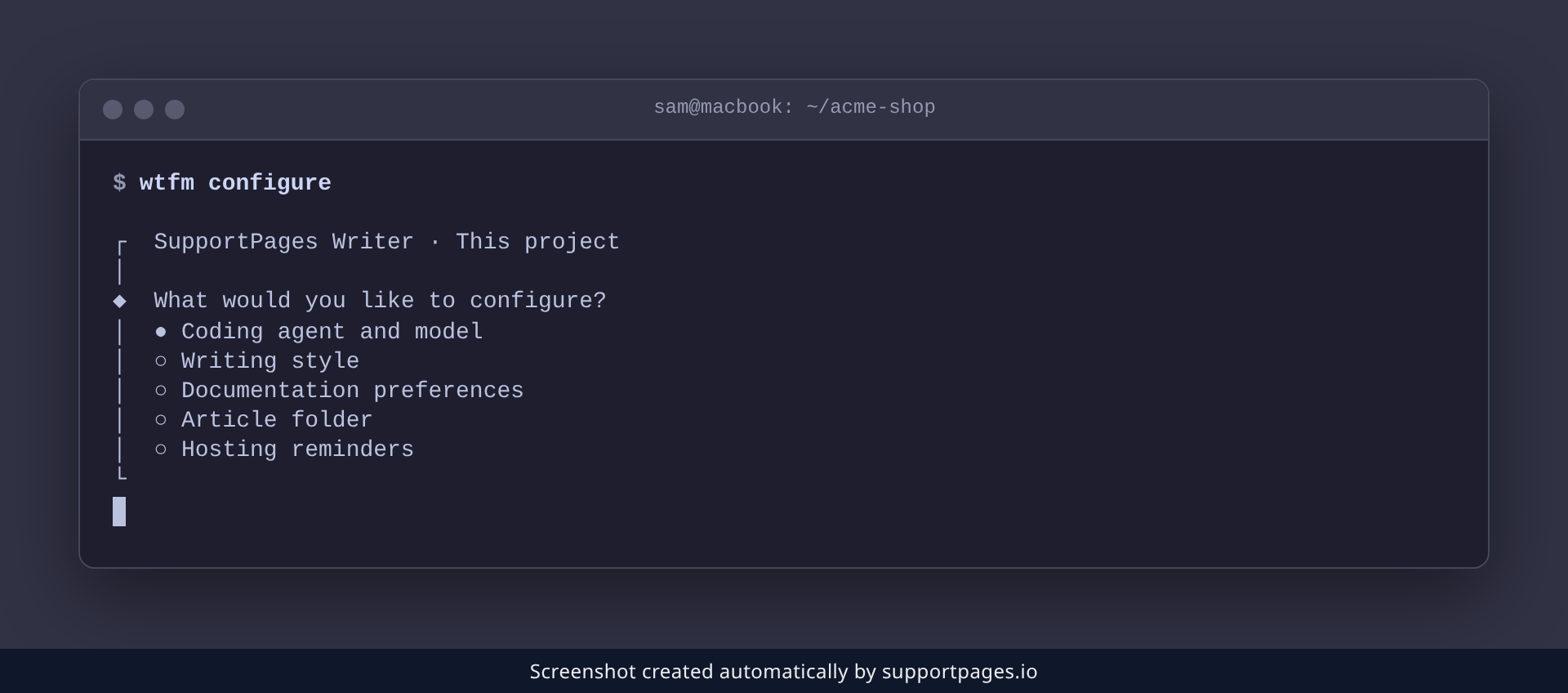
Run wtfm configure in your project folder.
wtfm configure
SupportPages Writer opens a short menu. Choose Coding agent and model.
Choose the coding agent
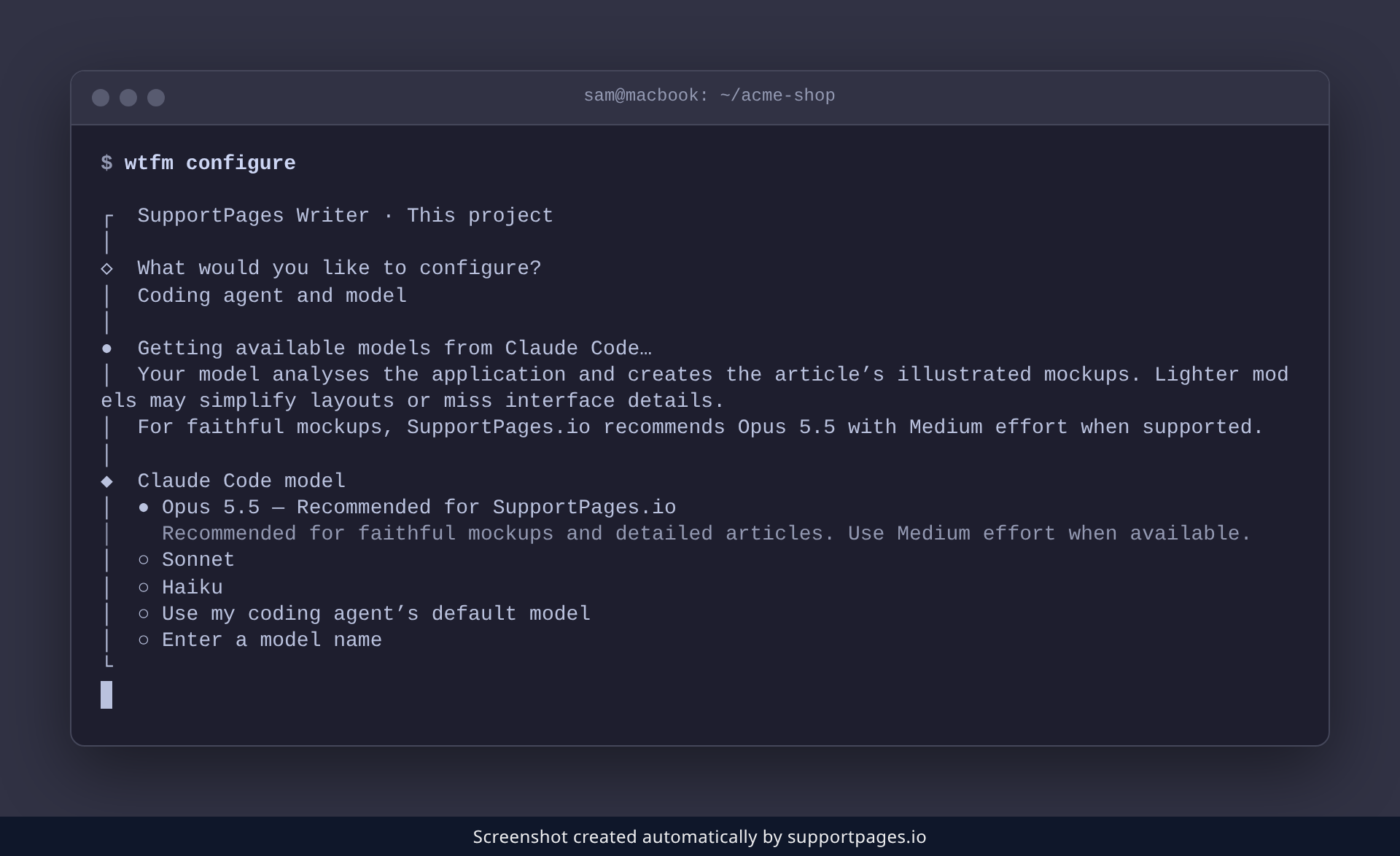
If both Claude Code and Codex are connected, you'll be asked which one should write this project's articles — pick Claude Code or Codex. When only one agent is connected, it's used automatically and this question is skipped.
Choose the model
Next you pick the model. SupportPages Writer lists what your coding agent offers and marks the one it recommends for faithful mockups. Move the highlight with the arrow keys, or type to filter, then press Enter.
Set the reasoning effort
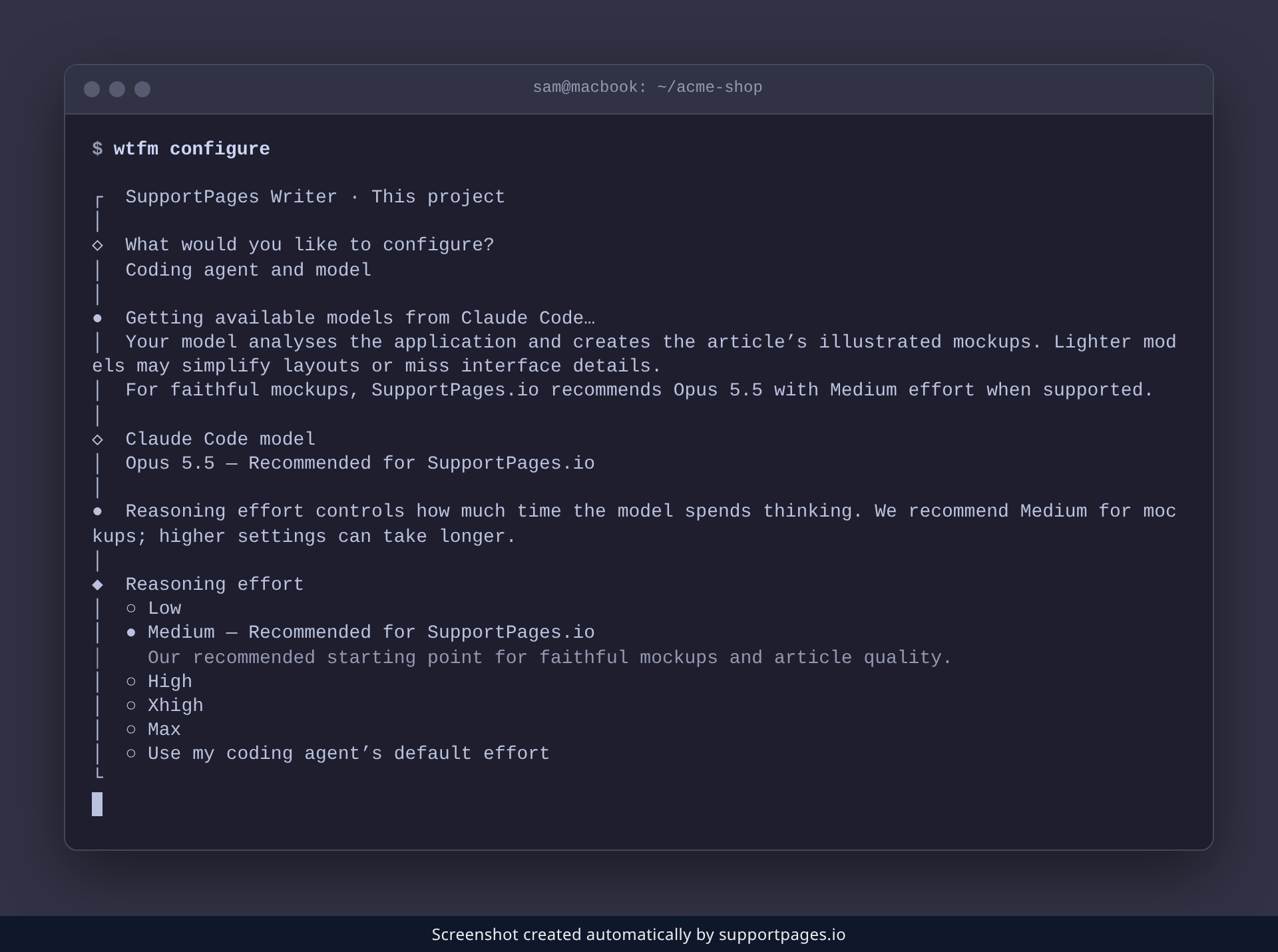
Reasoning effort is how much time the model spends thinking before it writes. Medium is the recommended starting point for mockups; higher settings take longer. Pick an effort and press Enter to save it for this project.
Tips
- These settings belong to this project only — your other projects keep their own agent and model.
- Lighter models may simplify layouts or miss interface details, so stick with the recommended model when article quality matters.
- Model and effort are separate: the same model thinks harder on High than on Low.
-
You can run
wtfm configureagain whenever you want to change any of them.
Summary
Run wtfm configure, choose Coding agent and model, then pick a model and an effort. Match a stronger model and Medium effort to the articles that need to look sharp, and keep a lighter setup for quick drafts.
Was this article helpful?
Generated by supportpages.io, an AI changelog generator for SaaS teams.
Have a question?
Search our articles, or ask and get an answer straight away.