
How to update an existing article
Updated about 2 months ago
Browse All
Buttons move, wording ages, and screenshots stop matching. You can update a guide in place so readers always see the current steps — and you do it by asking your coding agent, the same way you wrote the guide.
Before you start
-
WTFM is set up for this project — run
wtfm initif you haven't yet. -
At least one guide already written, saved in
output/articles/. - Your coding agent open in the project folder.
- For a guide on a help centre: signed in to SupportPages.io.
Steps
Ask your agent to update the guide
Open your project in your coding agent and name the guide you want to change, along with what's different. The agent reads the source again, rewrites the steps and rebuilds the screenshots in the same article folder.
Ask for anything the guide covers — rewritten steps, tidier wording, or a fresh screenshot after the interface moved. For example:
Update the guide to inviting a teammate — the invite button moved to the Members page.
Check what changed
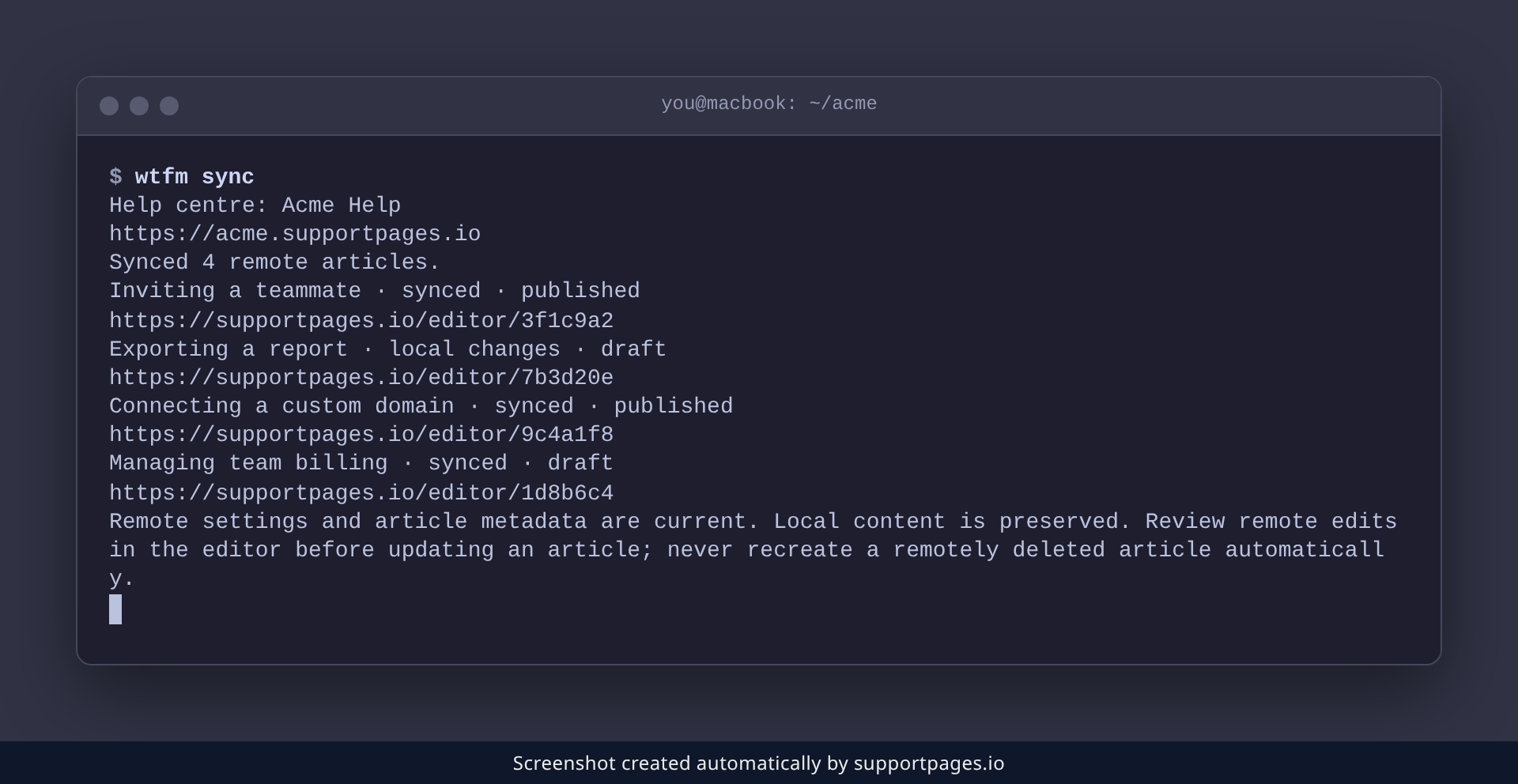
Run wtfm sync to compare this folder's guides with your help centre. The guide you just updated comes back as local changes, while the ones you left alone still read synced.
wtfm sync
Send the update to your help centre
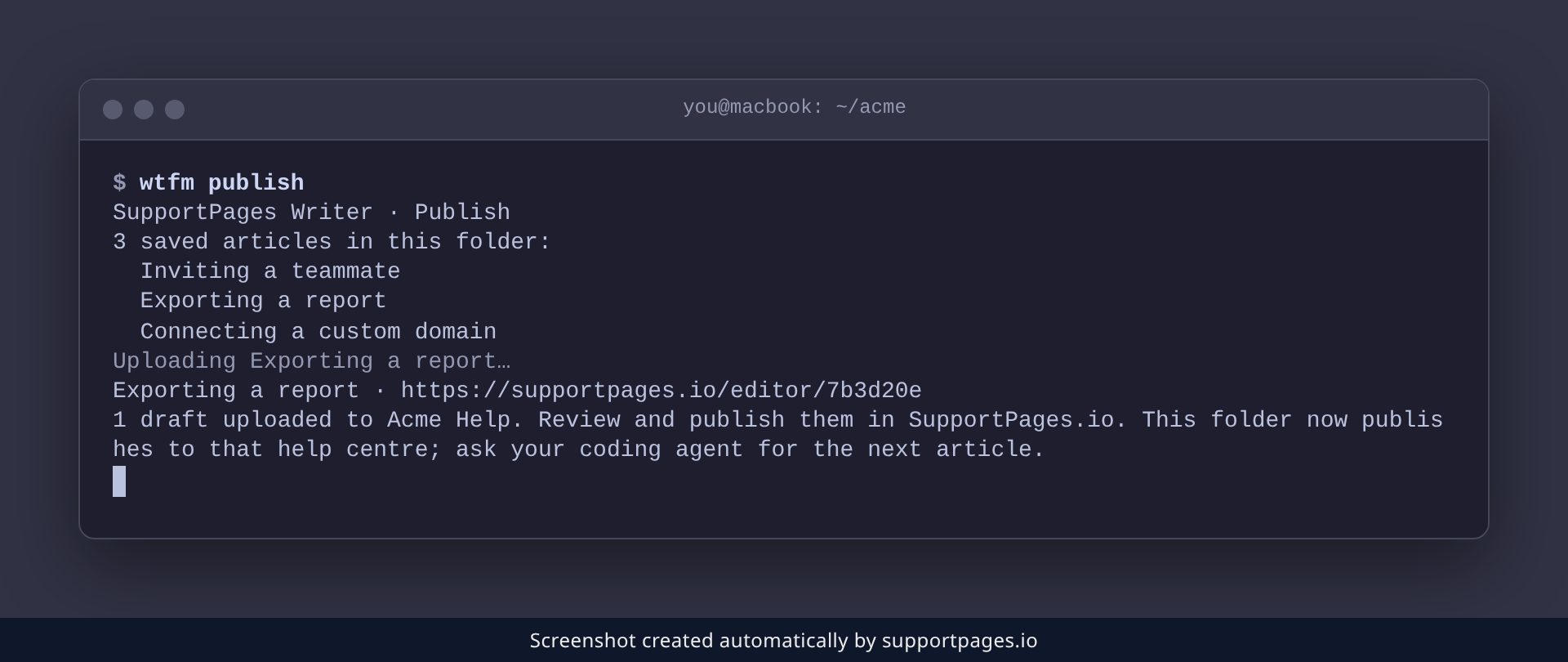
Run wtfm publish and pick the guide you updated. It uploads as a fresh draft and gives you a link to review it in SupportPages.io before it goes live.
wtfm publish
Tips
- Keeping guides in your own folder? Asking your agent is the whole update — the refreshed steps and screenshots are already saved.
- Name the guide the way it appears in your article folder, so the agent updates the right one.
- Changed only the wording? Say so, and the agent can leave the screenshots as they are.
Summary
Updating a guide is just asking your agent again: it rewrites the steps and refreshes the screenshots in place. When the guide lives on a help centre, run wtfm publish to send the update across.
Was this article helpful?
Generated by supportpages.io, an AI changelog generator for SaaS teams.
Have a question?
Search our articles, or ask and get an answer straight away.