
How to publish your saved articles to a help centre
Updated about 2 months ago
Browse All
Your saved articles sit in the project folder until you send them somewhere. Running wtfm publish signs you in, links the folder to a SupportPages.io help centre, and uploads the articles as drafts you can read over first.
Before you start
-
A project set up with
wtfm init. - At least one article saved in the project folder.
- A connection to the internet, so WTFM can reach SupportPages.io.
Run the publish command
Open a terminal in your project folder and run:
wtfm publish
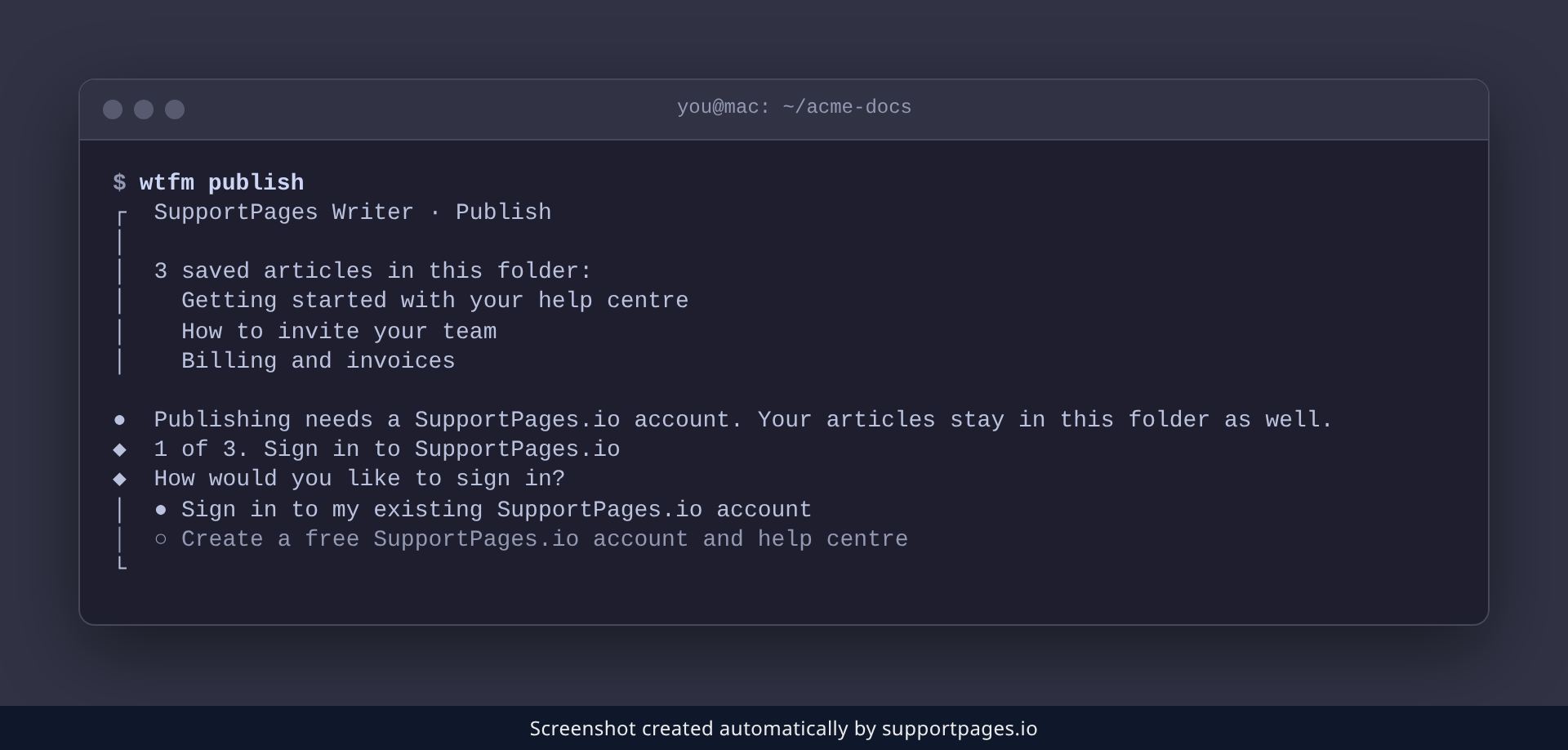
WTFM lists the articles saved in this folder, then walks you through signing in, choosing a help centre, and uploading them.
Steps
Sign in to SupportPages.io
Pick Sign in to my existing SupportPages.io account, or Create a free SupportPages.io account and help centre if you're new here. A browser window opens so you can approve this device, and WTFM carries on in the terminal once you're back.
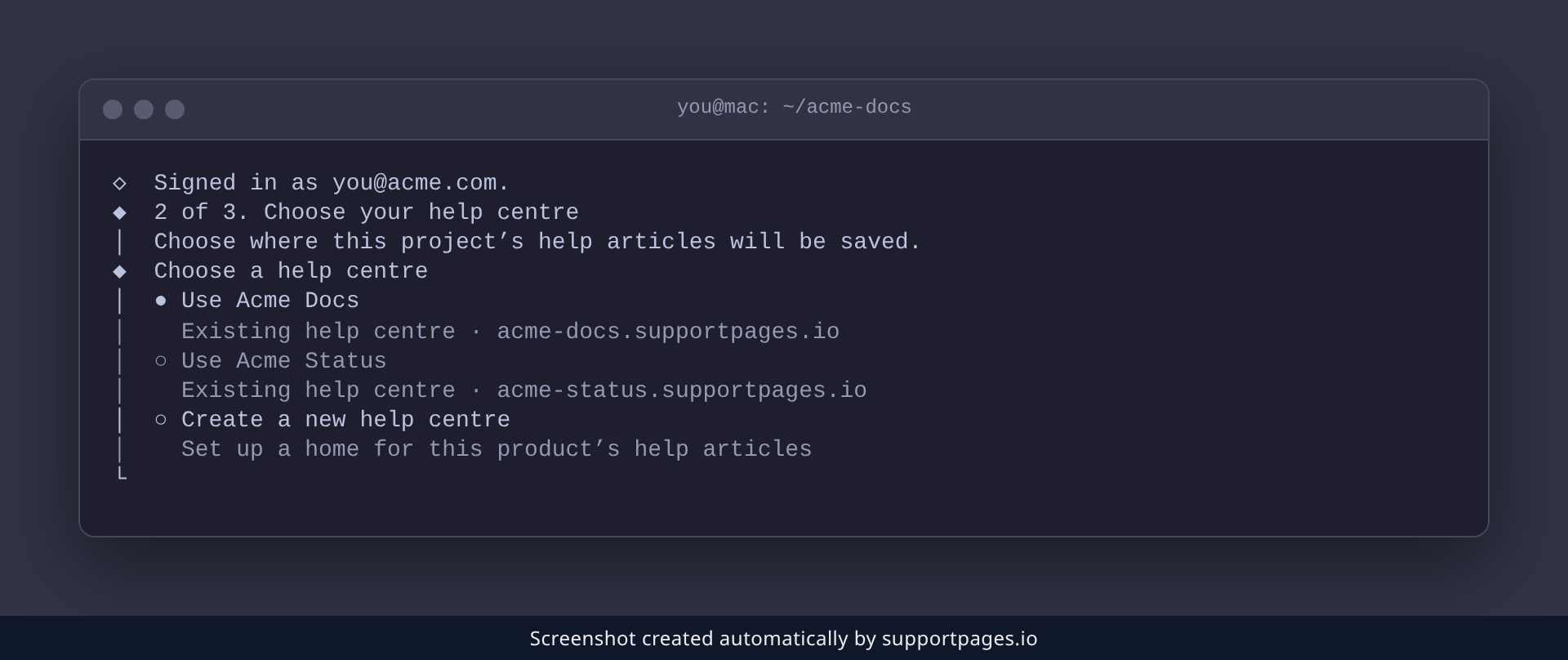
Choose your help centre
Select the help centre these articles should belong to. If you don't have one yet, choose Create a new help centre and give it a name and its address. Confirm the connection when WTFM asks and the folder is linked.
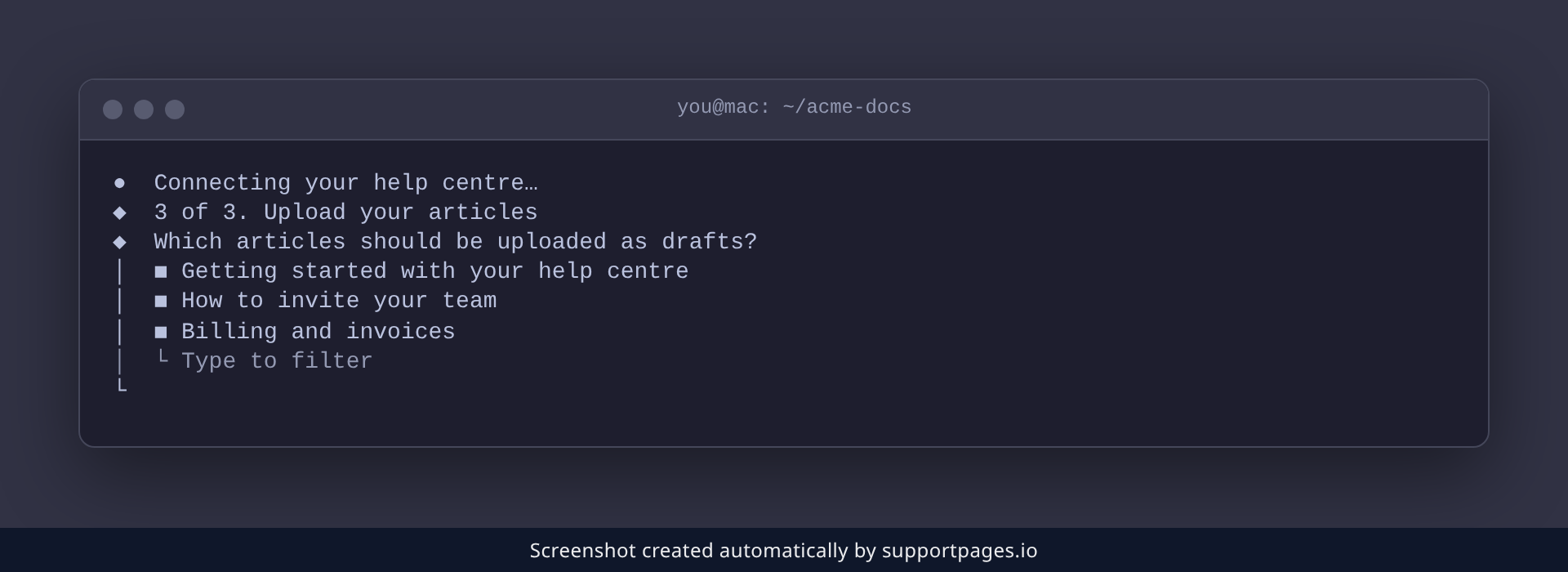
Upload your articles
Every saved article is already selected in the Which articles should be uploaded as drafts? list. Clear any you'd rather send later, then press Enter to upload the rest as drafts.
Tips
- Drafts aren't public. Open each link, give the article a read, then publish it in SupportPages.io when you're happy with it.
-
The folder stays linked to that help centre, so run
wtfm publishagain whenever you've written something new. - Already signed in on this computer? WTFM skips the sign-in step and goes straight to your articles.
- When you connect a help centre for the first time, WTFM also asks for its writing style. That choice covers the whole help centre, including articles your team writes later.
Summary
Run wtfm publish, sign in, pick your help centre, and send your articles over as drafts. The articles stay in this folder as well, and every new one can follow the same route.
Was this article helpful?
Created with supportpages.io — AI help centre software.
Have a question?
Search our articles, or ask and get an answer straight away.