
How to sync help centre data from SupportPages.io
Updated about 2 months ago
Browse All
Your project keeps a local copy of your help centre's settings and article history, and that copy drifts as you and your team make changes on SupportPages.io. Running wtfm sync pulls the latest down, so you always write against the current picture.
Prerequisites
-
A project set up with
wtfm initand linked to your help centre on SupportPages.io. -
Signed in to SupportPages.io, with
wtfm loginif you aren't already. - A terminal open in your project folder.
Steps
Open your project folder
In your terminal, change into the project you set up with wtfm init.
cd path/to/your-product
wtfm sync reads the link this folder already saved, so run it from there.
Run the sync command
From your project folder, run the sync command.
wtfm sync
SupportPages.io refreshes this project's settings and article history, then prints a short report of what it found. Add --json if you need the same result as data in a script.
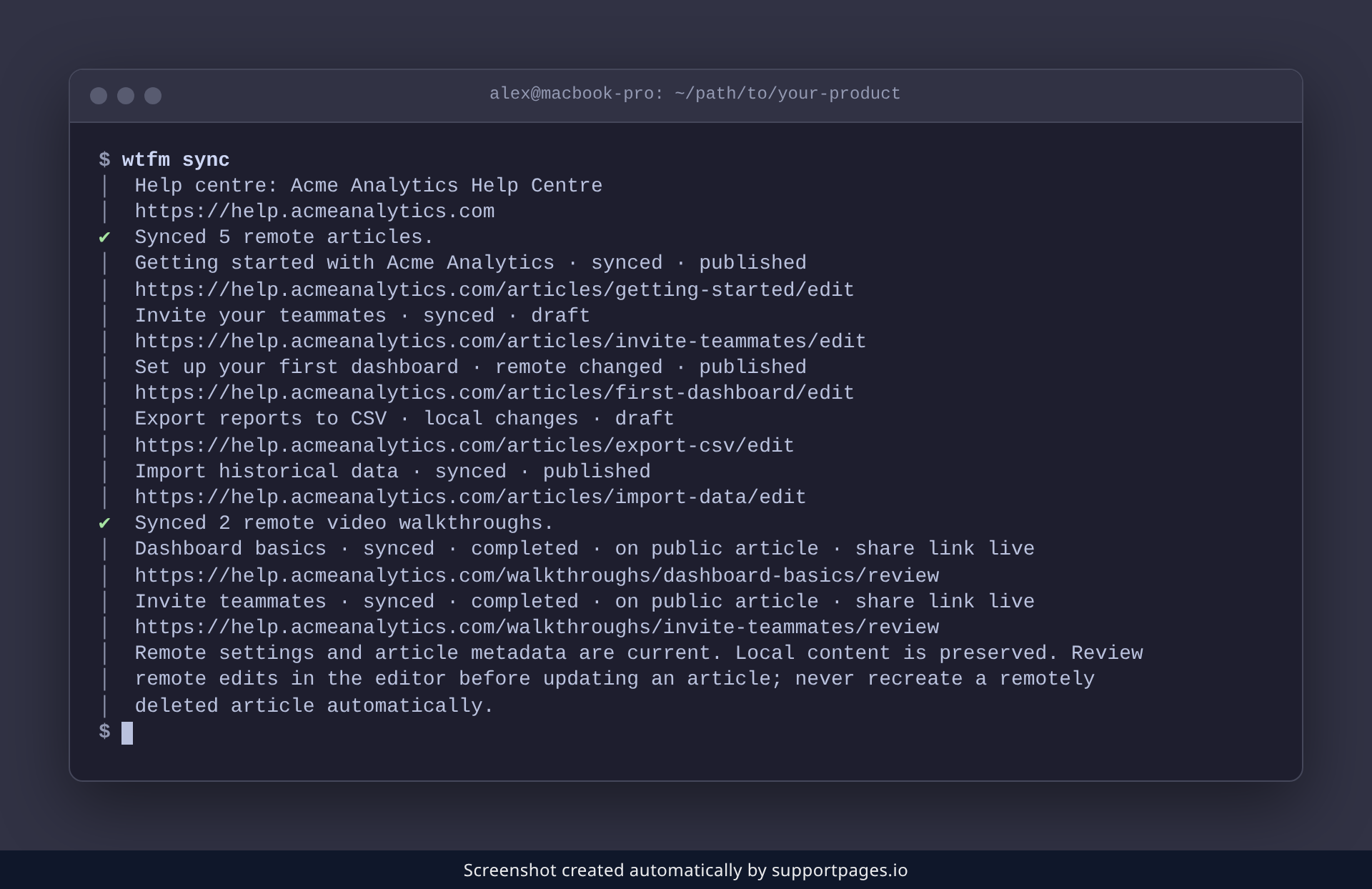
What the report tells you
- The help centre name and URL confirm which help centre this folder is linked to.
-
syncedmarks an article that matches what's on SupportPages.io. -
remote_changedmeans someone edited it on the help centre; open the editor link in the report and review before uploading local changes. -
local_changesmeans you have edits that aren't on the help centre yet. -
remote_onlyis an article that exists on the help centre but not in this folder. -
deleted_remotelymeans it was removed on SupportPages.io, and the report will never recreate it for you. - Video walkthroughs are listed the same way, with their own status and, when shared, a review link.
Tips
-
Run
wtfm syncbefore you start writing, so you're never working from settings that changed on the server. -
Sync only reads from SupportPages.io — your local articles are left exactly as they are. Use
wtfm publishwhen you want to send them up. - Already signed in? Sync won't ask you to log in again.
Summary
Run wtfm sync from your project folder whenever you want the current help centre settings and article history. Read the report, review anything that changed on the server, and you're ready to write.
Was this article helpful?
Built with supportpages.io — an AI documentation generator.
Have a question?
Search our articles, or ask and get an answer straight away.