
How to turn anonymous usage reporting on or off
Updated about 2 months ago
Browse All
SupportPages Writer sends anonymous usage counts and crash reports by default — no code, file paths, or article content. Here's how to check what it sends, turn it off, or switch it back on.
Before you start
- SupportPages Writer installed on your computer
- A terminal window
Steps
Check what's being reported
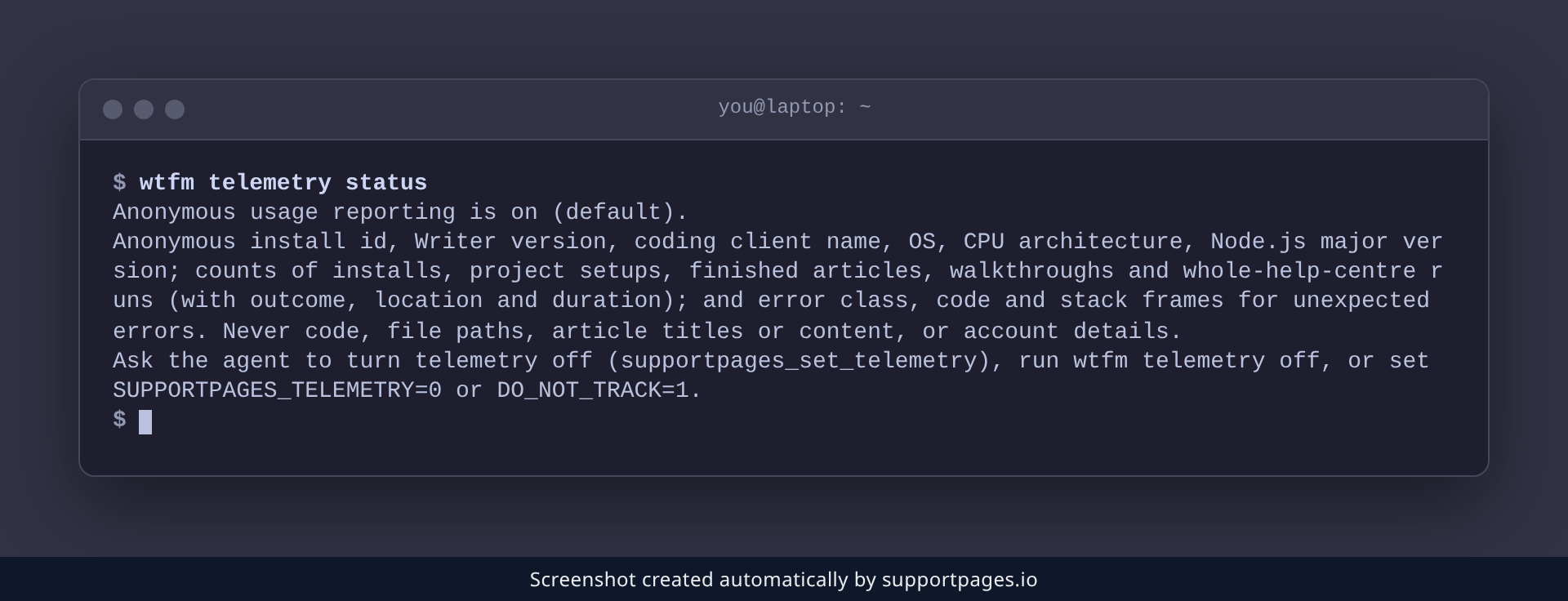
To see whether reporting is on and exactly what gets sent, run the status command:
wtfm telemetry status
The first line tells you the current state and why. Underneath it, SupportPages Writer lists every field it sends and the ways to turn reporting off.
Turn reporting off
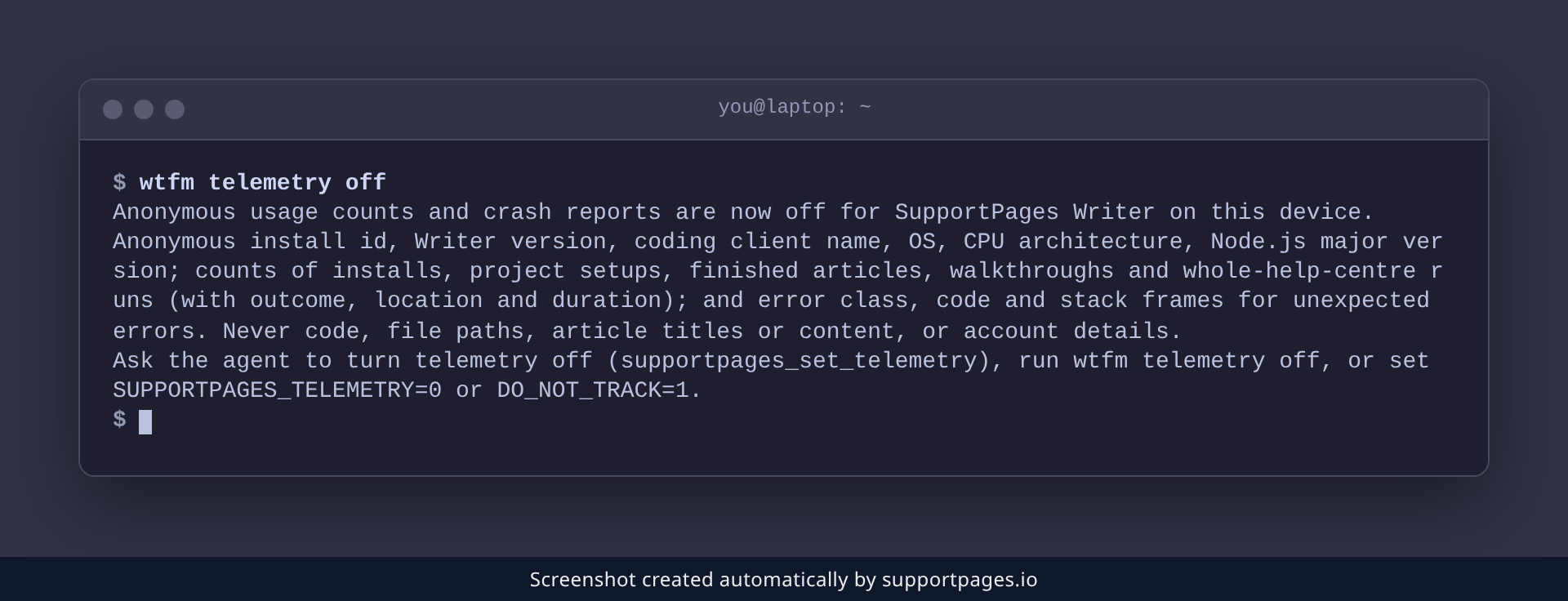
Run this to stop reporting from this computer:
wtfm telemetry off
You'll see a confirmation that usage counts and crash reports are now off. The setting is saved for this device, so it stays off the next time you run SupportPages Writer.
Turn reporting back on
Changed your mind? Switch it back on:
wtfm telemetry on
That's it — the confirmation shows reporting is on again, and this device starts sending anonymous counts as before.
Keep it off with an environment variable
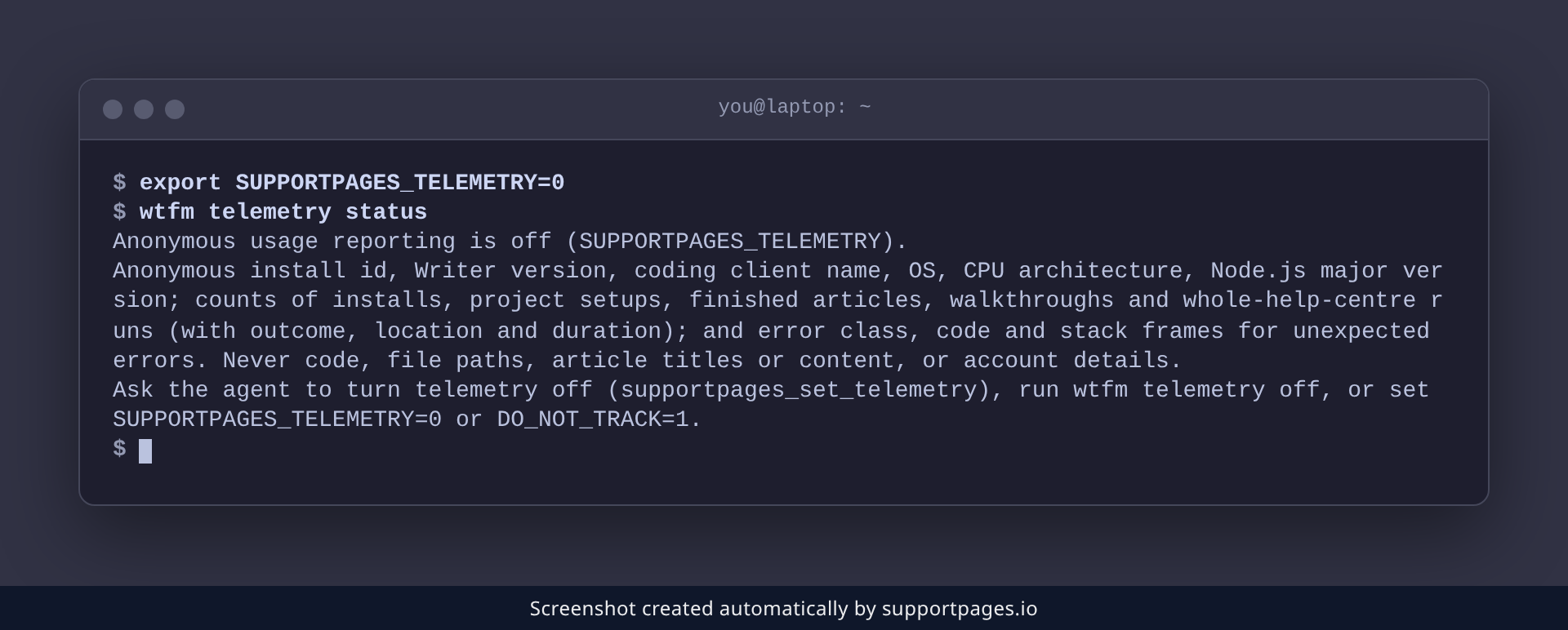
If you'd rather switch reporting off wherever SupportPages Writer runs — including scripts and CI — set an environment variable instead:
export SUPPORTPAGES_TELEMETRY=0
This takes priority over the saved setting. Run the status command again and the reason reads SUPPORTPAGES_TELEMETRY. Setting DO_NOT_TRACK=1 works just the same.
Tips
-
Your choice is per computer. Running
wtfm telemetry offon your laptop doesn't change your desktop. -
Automation stays quiet by default: SupportPages Writer doesn't report from a
CIenvironment unless you setSUPPORTPAGES_TELEMETRY=1yourself. - Prefer not to type commands? Ask your coding agent to turn reporting off for you — it can change the same setting.
Summary
Reporting is on by default, and a single command turns it off or back on whenever you like. Run the status command any time to see what's sent and which setting is in effect.
Was this article helpful?
Powered by supportpages.io, AI release notes software.
Have a question?
Search our articles, or ask and get an answer straight away.