
How to refresh project analysis after big changes
Updated about 2 months ago
Browse All
Your routes, screens and styling move on — the analysis WTFM wrote when it last read your project doesn't. Refresh it, and every article you write from here is built from the interface your users actually see.
Before you start
-
You've run
wtfm setupon this computer at least once. -
This project has been set up with
wtfm init. - Your coding agent (Claude Code or Codex) is installed and signed in.
- A terminal is open in the project folder.
Steps
Refresh the project analysis
In the project folder, run:
wtfm analyse --refresh
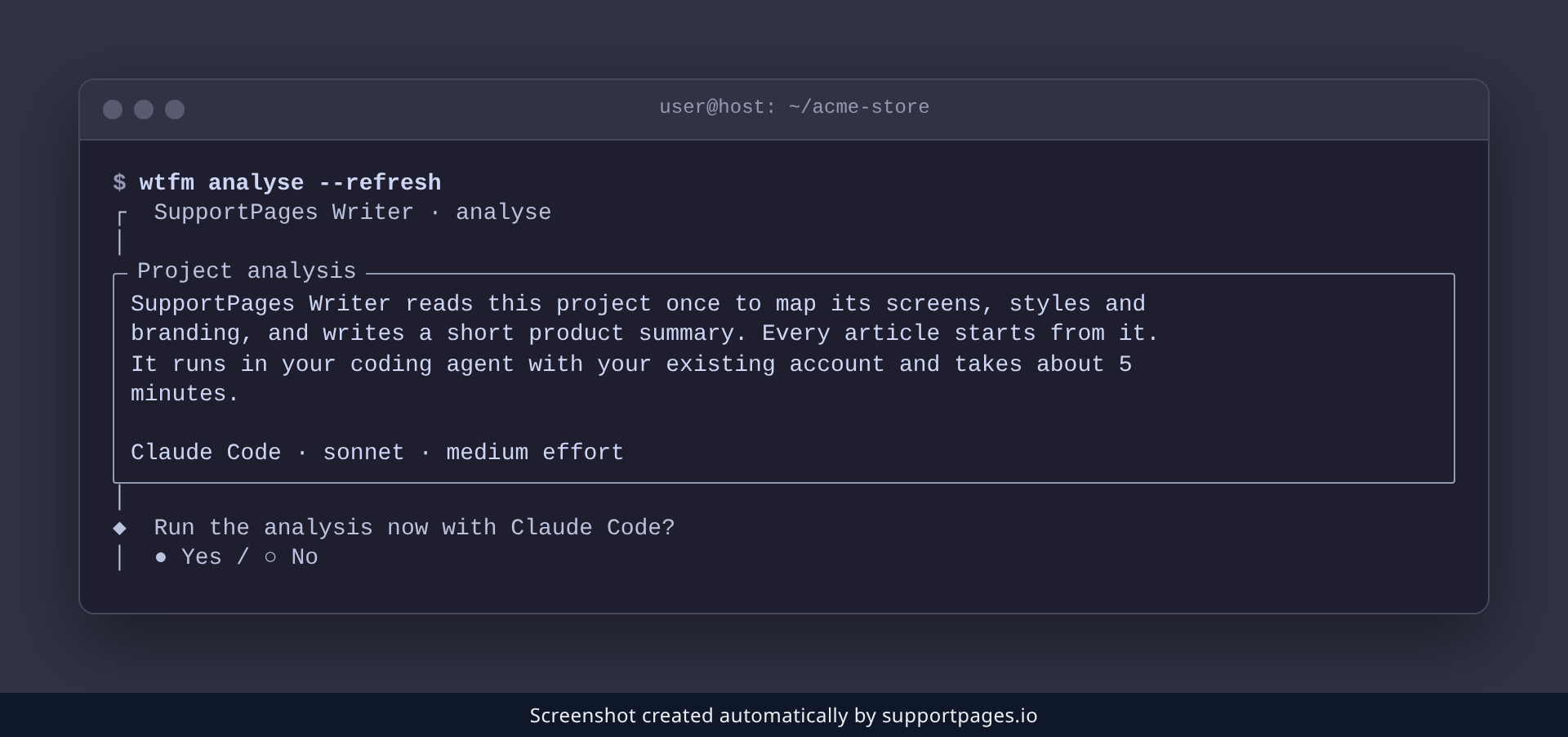
Your coding agent reads the project again — mapping its screens, styles and branding a second time — which usually takes about five minutes. It asks you to confirm before it starts, so nothing runs behind your back.
Check what the refresh found
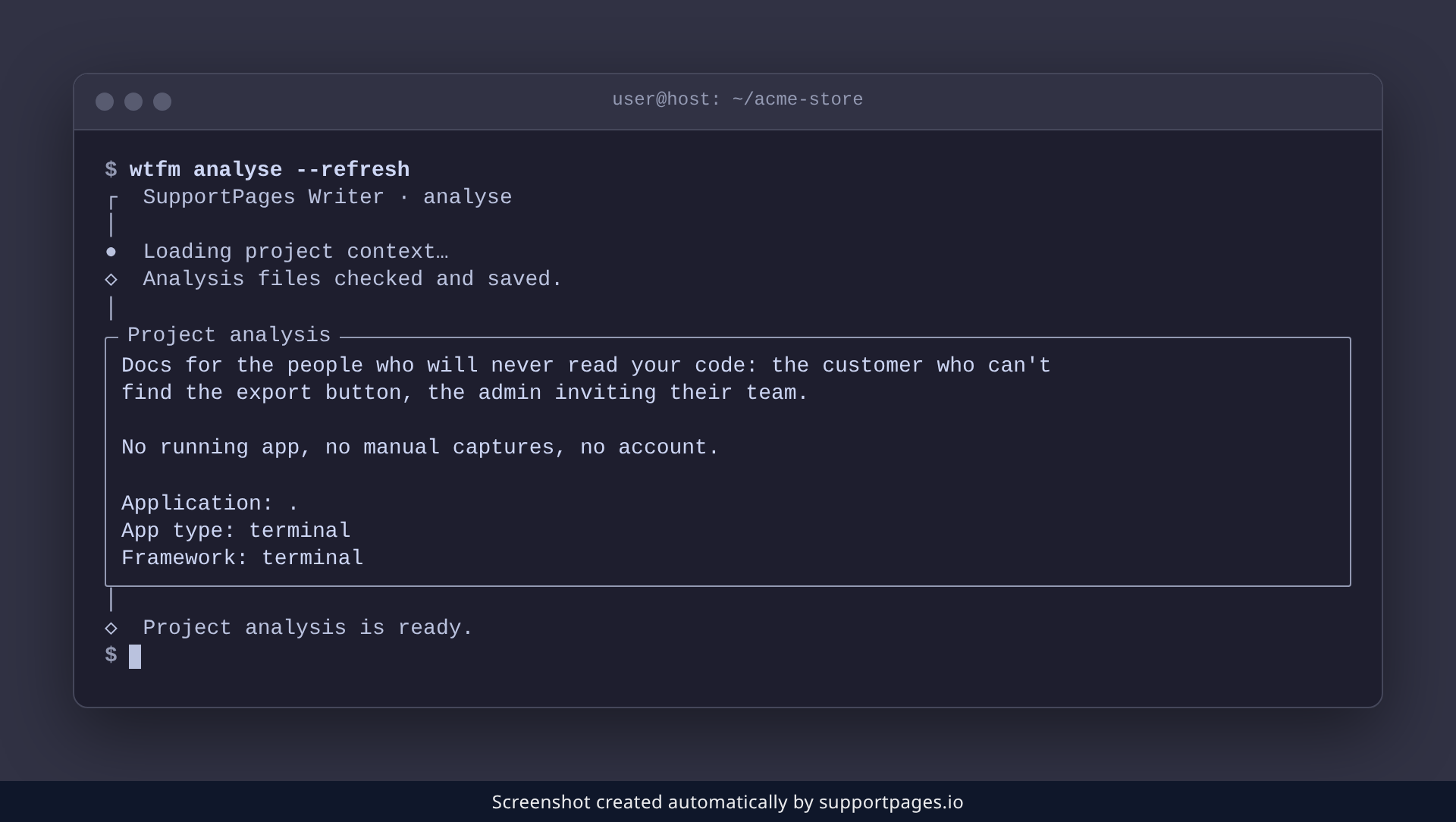
When the run ends, WTFM prints a short summary of what it found: the application folder, the app type and the framework it detected, alongside a fresh product overview. Give it a quick read — if the app type looks wrong, run the command again with --app-type and set it yourself.
Let WTFM spot the change next time
You don't have to remember the flag:
wtfm analyse
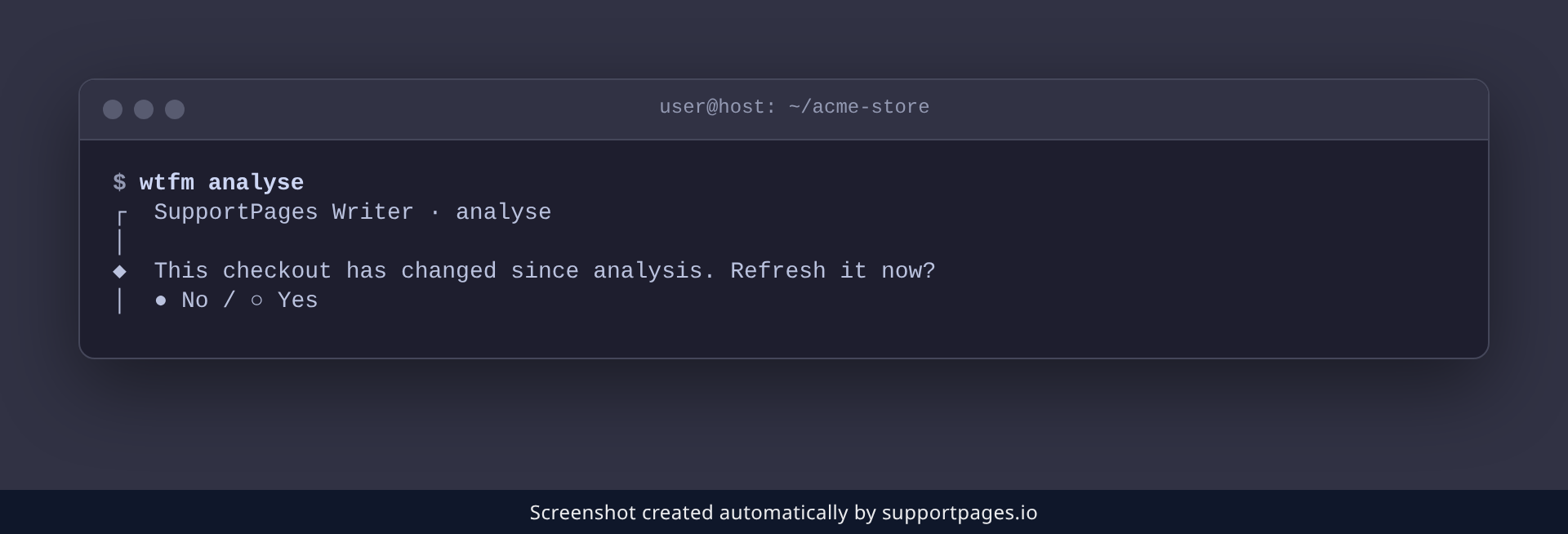
Run on its own, it compares your latest commit with the one it last analysed. When the two have drifted apart, WTFM offers to refresh on the spot.
Tips
- Refresh after moving routes, renaming screens or changing your styling — anything an article would otherwise show.
- Articles you've already written keep their old screenshots until you ask your agent to write them again.
- If a refresh is interrupted or its files don't validate, your previous analysis stays in place, so you can safely try again.
Summary
That's the whole job: run wtfm analyse --refresh, let your coding agent re-read the project, and check the summary it hands back. Your next articles will show the interface you just shipped.
Was this article helpful?
Powered by supportpages.io, AI release notes software.
Have a question?
Search our articles, or ask and get an answer straight away.