
How to check your installation with wtfm doctor
Updated about 2 months ago
Browse All
wtfm doctor checks the pieces WTFM needs to write and illustrate a guide — the MCP server, the article renderer, git, and your coding agent — and names the one that is letting you down. Run it whenever something stalls, or just to confirm you are ready to write.
Prerequisites
-
WTFM installed on this computer — run
wtfm --versionto check. - A terminal window open in your product's folder.
- Your coding agent (Claude Code or Codex) installed and available in that terminal.
Steps
Run the check
Open a terminal in your product's folder and run:
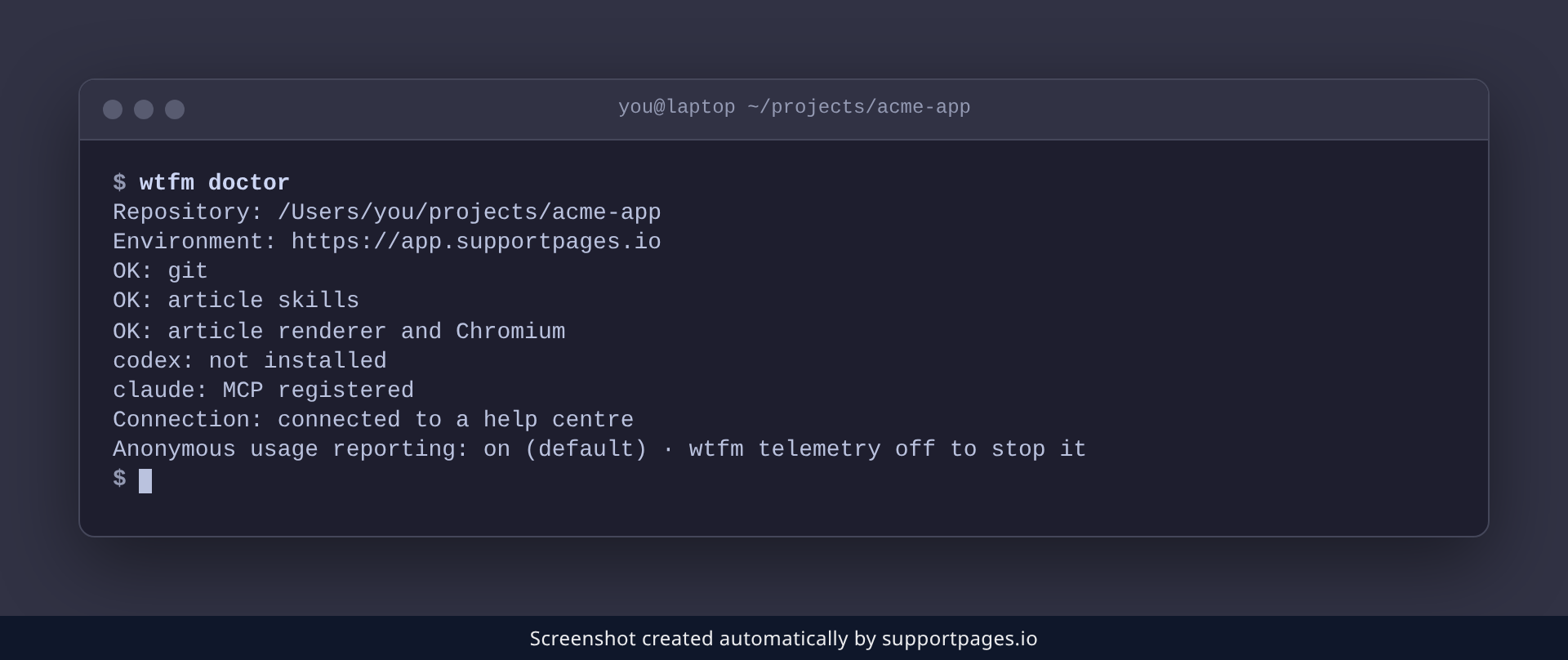
wtfm doctor
The report names the folder and environment it checked and confirms where your articles go, then gives a line for each prerequisite — git, article skills, and article renderer and Chromium — that reads OK or Missing. Your coding agents follow as claude and codex, reading MCP registered once connected, and the report is read-only, so nothing gets changed.
Fix anything that's missing
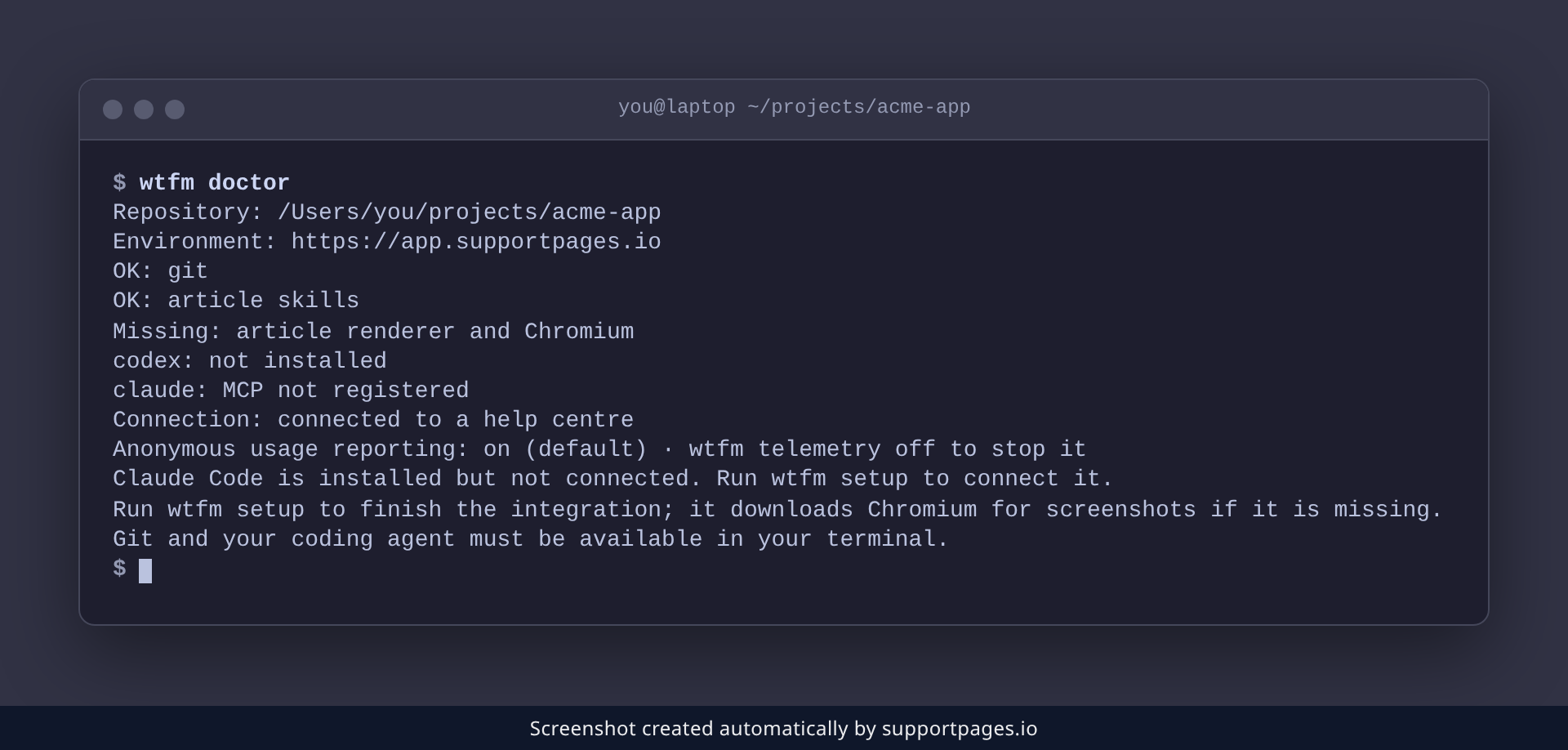
If a line reads Missing, or an agent reads MCP not registered, run:
wtfm setup
Setup installs what is missing — including Chromium, which the renderer downloads for screenshots — and reconnects your coding agent. When it finishes, run wtfm doctor again to confirm every line now reads OK.
Tips
-
Add
--jsonfor a machine-readable report:wtfm doctor --json. Handy for a bug report or a script. - Run it from your product's folder — doctor checks that project's folder and connection, not just your computer.
- The report is read-only, so it is safe to run any time, before or after a guide.
Summary
One command, one pass: wtfm doctor names the piece that is holding you up, and wtfm setup puts it back.
Was this article helpful?
Written with supportpages.io. More on documentation automation on our blog.
Have a question?
Search our articles, or ask and get an answer straight away.