
How to remove the coding-agent integration
Updated about 2 months ago
Browse All
Stepping away from WTFM takes one command. Your projects and the articles you have already written stay exactly where they are — only the connection to your coding agents is taken back.
Prerequisites
- WTFM is installed on this computer.
- A terminal window is open.
Steps
Run the remove command
In your terminal, run:
wtfm remove
WTFM looks at every coding-agent connection it manages on this computer. Nothing inside your project is touched.
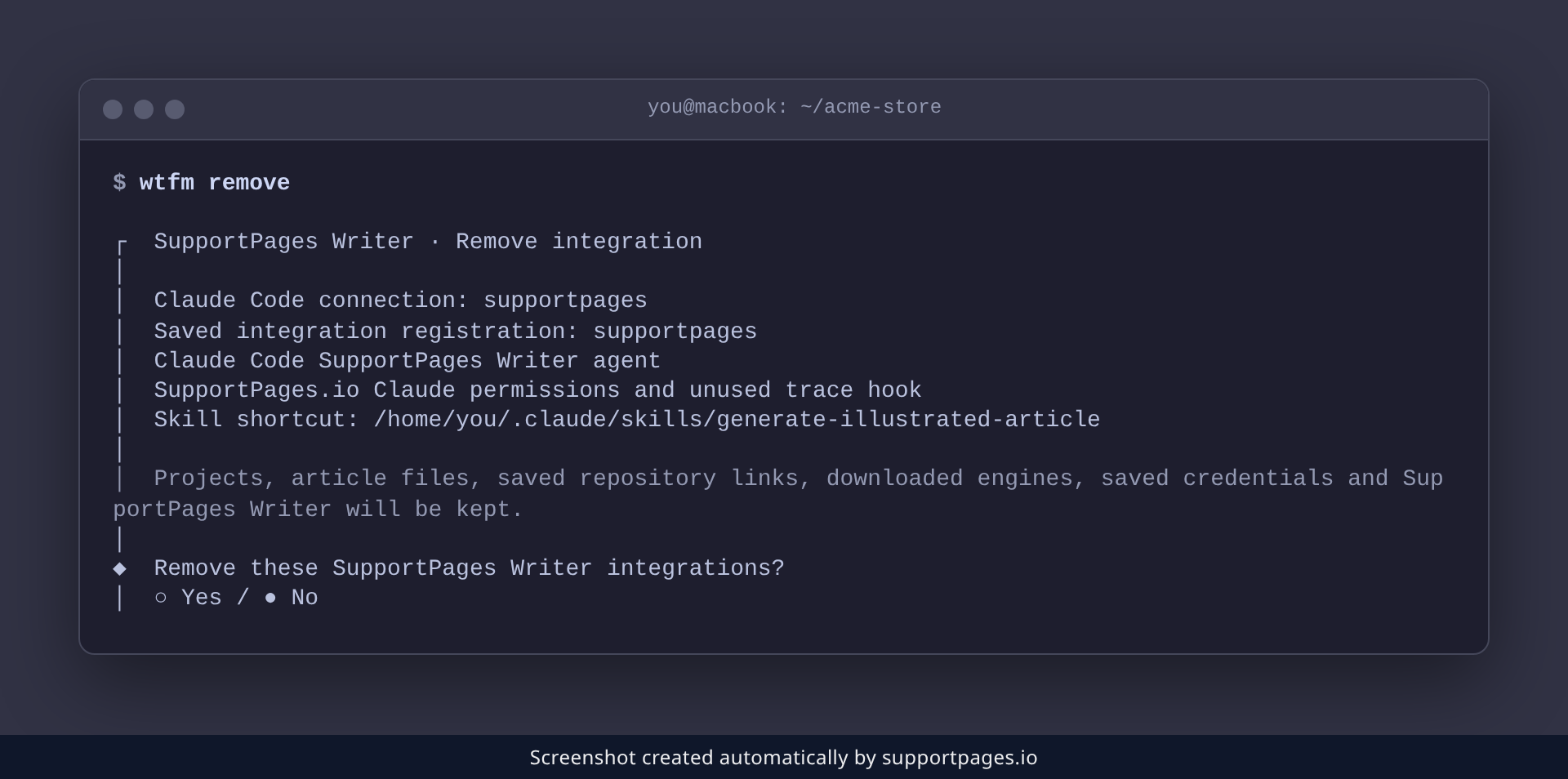
Review the list and confirm
WTFM prints the full list of connections, permissions, and skill shortcuts it will take back, followed by a note that your projects and articles are kept. Confirm the prompt to go ahead.
Restart your coding-agent sessions
Removal ends with a reminder to restart your agents. Close and reopen every Claude Code and Codex session so they drop the removed connections and cached skills.
Tips
-
Only want the SupportPages.io skill shortcuts gone? Run
wtfm remove --skills-only. -
To disconnect a single agent instead of both, add the
--agentflag — for examplewtfm remove --agent claude. - If WTFM reports nothing to remove, this computer is already disconnected.
-
Ready to bring the integration back? Run
wtfm setupagain — your projects and articles stay untouched.
Summary
Your coding agents are now disconnected from WTFM, and your documentation is still yours. Run wtfm setup whenever you want to pick things back up.
Was this article helpful?
Generated by supportpages.io, automating product documentation from your codebase.
Have a question?
Search our articles, or ask and get an answer straight away.