
How to turn automatic updates on or off
Updated about 2 months ago
Browse All
SupportPages Writer looks for a new release once a day and installs it quietly in the background while you work. If you would rather choose when updates happen, you can turn automatic updates off, and turn them back on whenever you like.
Prerequisites
- SupportPages Writer installed with the official installer, so it is able to update itself
-
A terminal, with your shell profile handy —
~/.zshrcon macOS or~/.bashrcon Linux
Steps
Turn automatic updates off
Add this line to your shell profile so every new terminal keeps automatic updates off:
export SUPPORTPAGES_AUTO_UPDATE=0
Open a fresh terminal, and SupportPages Writer reads the setting the next time it starts — the daily check stops from then on. Your articles and settings are left exactly as they are.
Turn automatic updates back on
Remove the line you added, or clear the variable in the terminal you are already in:
unset SUPPORTPAGES_AUTO_UPDATE
With the variable gone, the next session checks for updates as usual.
Update now, by hand
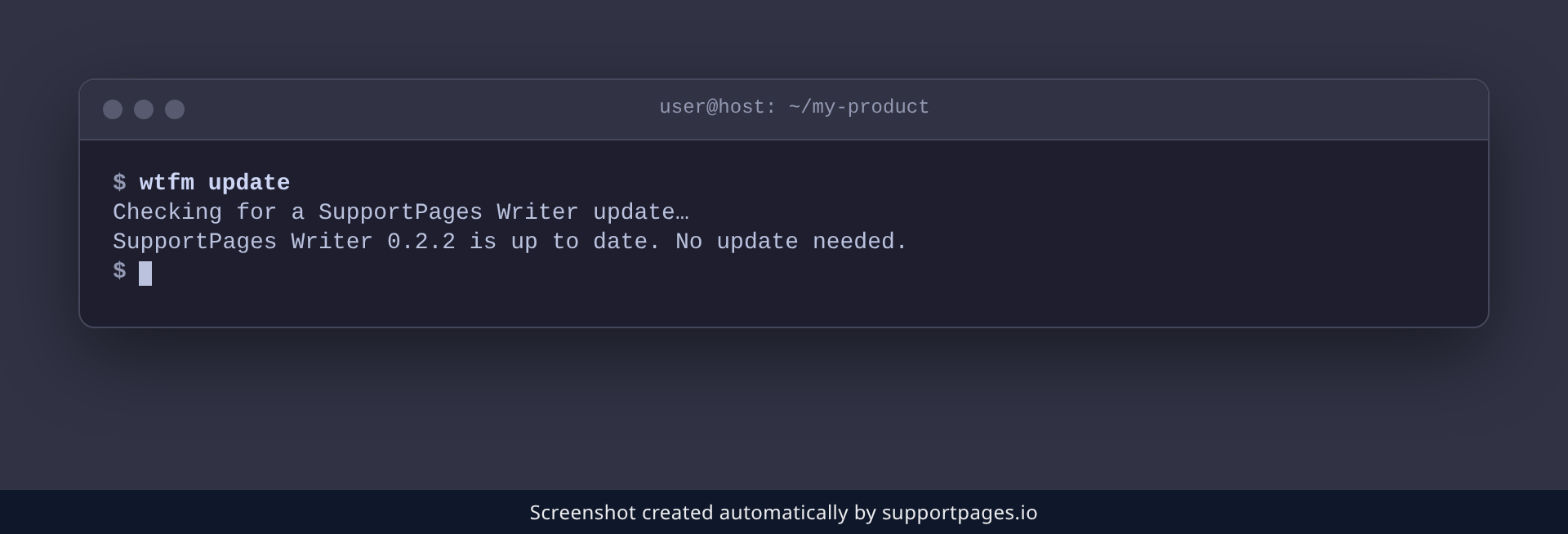
You never have to wait for the daily check. Run this command any time you want the newest release right away:
wtfm update
If a newer release is out, SupportPages Writer installs it and keeps your settings and articles. If you are already on the newest version, it tells you so and stops.
Tips
-
The variable also accepts
falseoroff— any of those three turns the daily check off. - Automatic updates only swap in the newer release. Your articles, settings and sign-in are never touched.
Summary
Set SUPPORTPAGES_AUTO_UPDATE=0 to keep SupportPages Writer on your own schedule, remove it to hand control back to the daily check, and run wtfm update whenever you want the newest release straight away.
Was this article helpful?
Help centre by supportpages.io — AI-generated documentation for SaaS.
Have a question?
Search our articles, or ask and get an answer straight away.