
How to set your project's app type
Updated about 2 months ago
Browse All
WTFM reads your project and works out what kind of app it is, then draws every screenshot from that interface. When the guess lands on the wrong kind of project, set the app type yourself so the screenshots come from the right place.
Prerequisites
-
SupportPages Writer set up on this computer and in this project: run
wtfm setuponce, thenwtfm initinside the project. -
The type that fits your product:
web,terminal,mobile,desktop,win32,macos, orgame.
Steps
Match the app type to your project
Pick the one that matches how people really use your product: web, terminal, mobile, desktop, win32, macos, or game. WTFM uses it to decide which part of your source to read and how to draw each screen.
Re-run the analysis with your app type
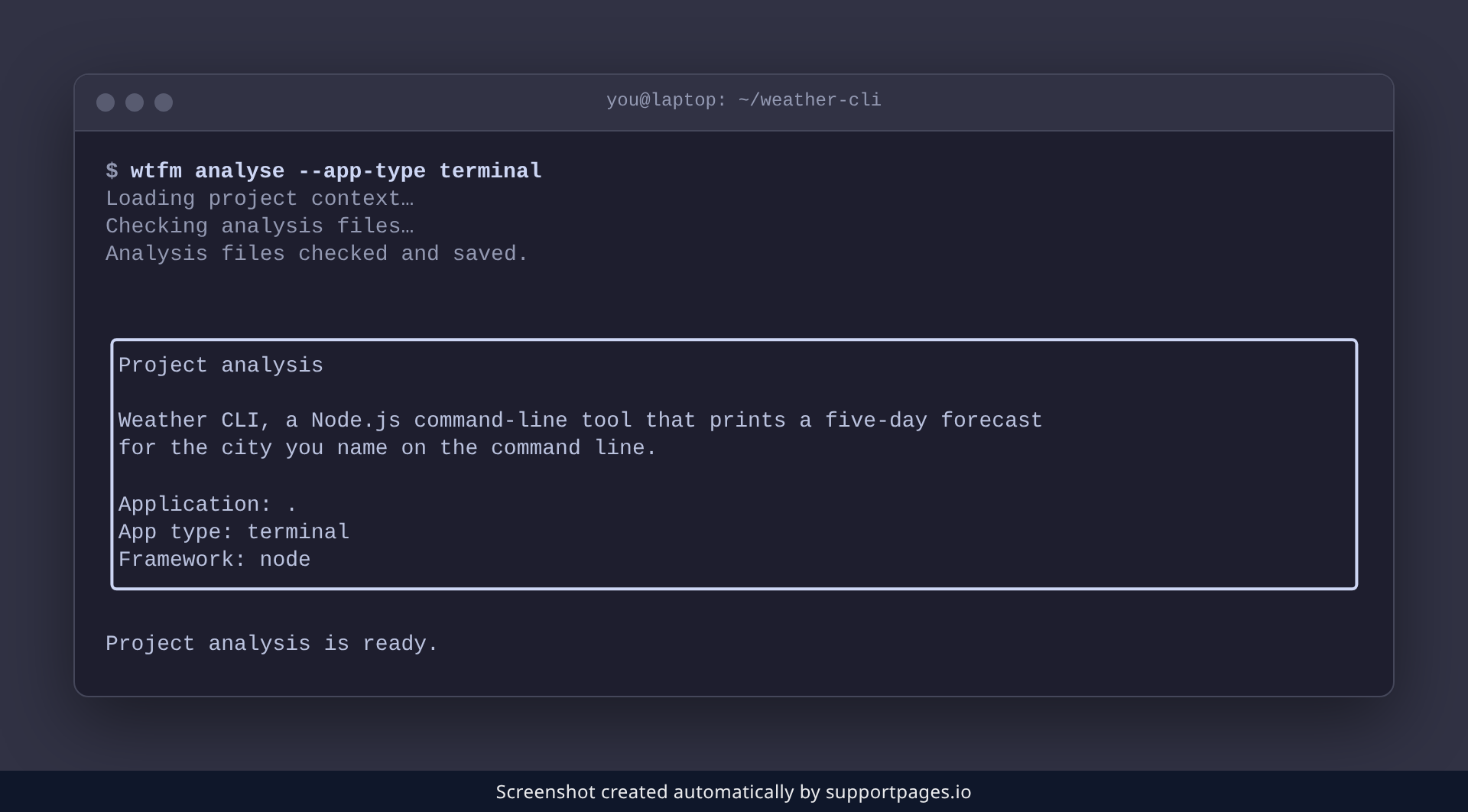
From your project folder, run wtfm analyse and pass --app-type with the type you chose. WTFM re-reads the project and saves the new type, so the next article you ask for starts from the right interface.
wtfm analyse --app-type terminal
The run ends with a Project analysis summary. Check that the App type line shows the type you set.
If WTFM asks for a type
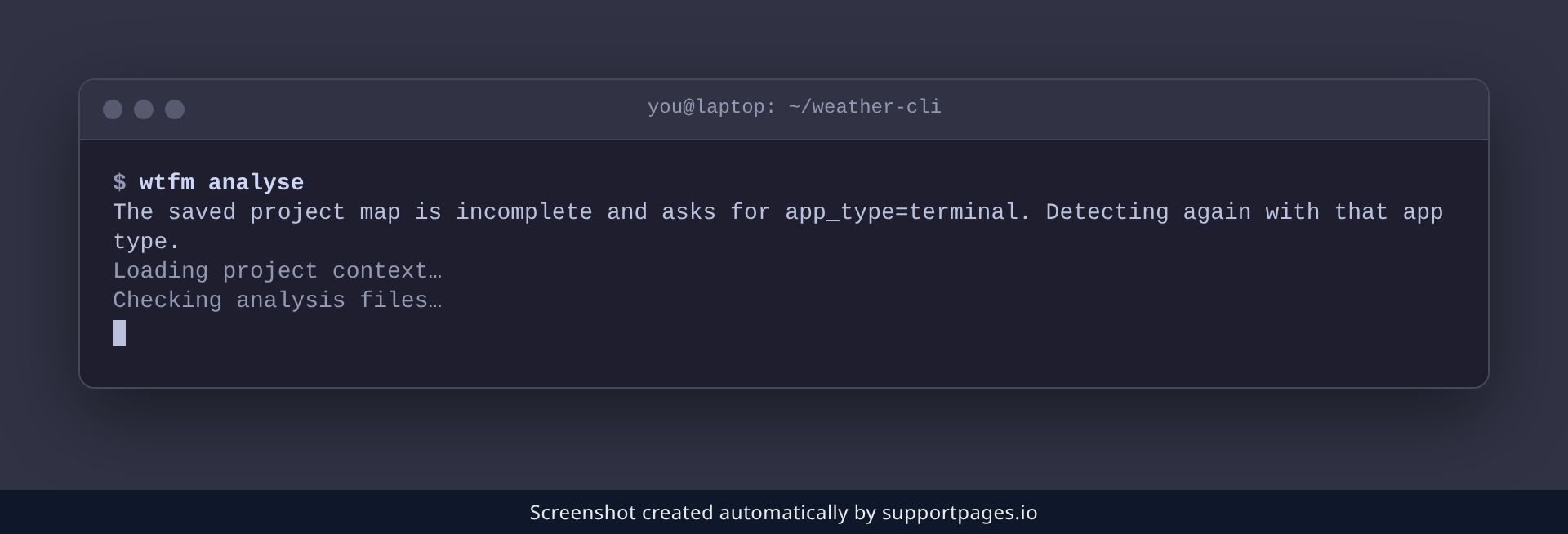
Sometimes detection stops partway and names the app type it needs instead of guessing. Run wtfm analyse on its own and read the line it prints, then re-run with --app-type and that value.
wtfm analyse --app-type terminal
Tips
-
Set the type the first time round by adding
--app-typetowtfm initwhile you set the project up. -
Add
--refreshto force the analysis to run again even when a saved one exists.
Summary
Set the app type by passing --app-type to wtfm analyse (or wtfm init), then check the App type line in the Project analysis summary. With the right type saved, every screenshot comes from the interface your readers actually use.
Was this article helpful?
Written with supportpages.io. More on documentation automation on our blog.
Have a question?
Search our articles, or ask and get an answer straight away.