
Understanding what WTFM does
Updated about 2 months ago
Browse All
WTFM — Write the F***ing Manual — turns the coding agent you already use into a technical writer for your product's users. You set it up once, ask for a guide in plain words, and your agent writes the steps and shows each screen with a screenshot built from your own templates.
What WTFM is
WTFM works with Claude Code or Codex. Once it is set up, your agent can read your project's source and write the documentation your users actually need — the guide for the customer who cannot find the export button, the notes for the admin inviting their team.
The steps come from your code, not from a description you type, so they match what people really see on screen.
What it writes
Each article is a plain Markdown file with its screenshots beside it, saved in your project at output/articles/<slug>/. Every article gets up to three screenshots: the main path first, with optional branches described in text.
output/articles/how-to-invite-a-teammate/
├── index.md
├── block_open-settings.png
├── block_invite-form.png
└── block_send-invite.png
Because the output is ordinary Markdown, you can commit it next to your code or drop it into any docs site.
The three-part loop
The loop has three parts, and only two of them happen in the terminal. wtfm setup runs once on the computer: it connects Claude Code and/or Codex, adds the writer, and downloads the screenshot renderer.
wtfm setup # once per computer
wtfm init runs once in each project, recording where articles should be saved and studying the project's structure, styles and branding.
wtfm init # once per project
After that, open Claude Code or Codex in the project and ask for an article in plain words — for example, "Write an illustrated guide to inviting a teammate."
Why the screenshots match
You never have to run your app or capture screens by hand. WTFM rebuilds each screen as an HTML mockup from your project's own markup, styles and branding, then renders it to PNG in a headless Chromium on your computer.
Before an article is saved, it passes structure, copy and screenshot checks — so the steps line up with your real interface.
Finding your way around
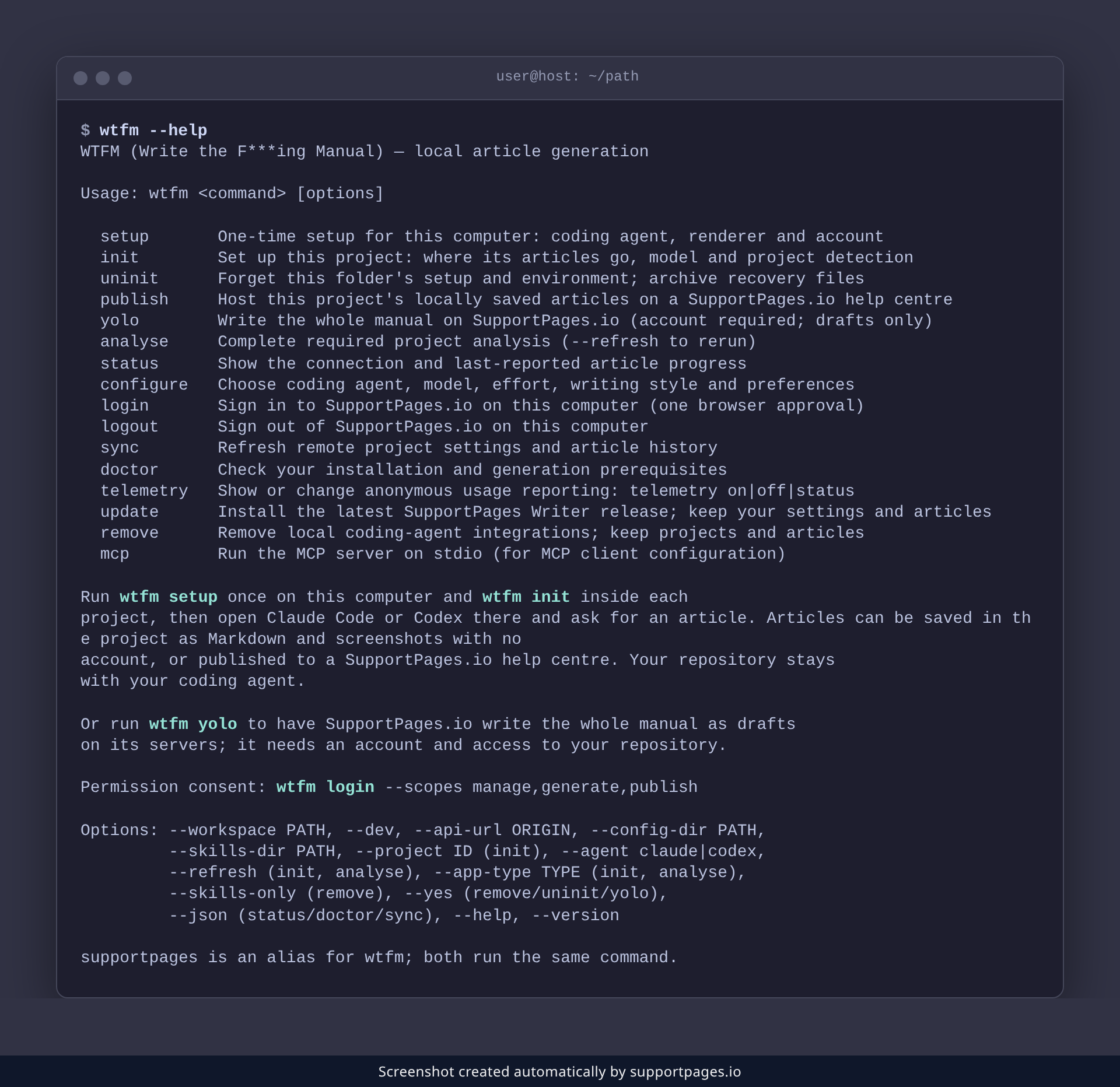
The terminal is only for setting up and keeping things running; the writing happens in your agent. wtfm --help lists every command, wtfm status shows this project's setup, and wtfm doctor confirms everything is installed and connected.
Good to know
- You do not need a SupportPages.io account to save articles in your project.
-
Writing style and article folder can change any time with
wtfm configure. -
Articles can live in your repo — pick a folder like
docs/helpduringwtfm init. - Your agent can list what already exists; try "What help articles do we have?"
Summary
WTFM is the bridge between the code your agent already understands and the documentation your users need. Set it up once, ask in plain words, and the guides — steps and screenshots — land in your project.
Was this article helpful?
Kept in sync by supportpages.io — continuous documentation for your product.
Have a question?
Search our articles, or ask and get an answer straight away.