
How to check your project's status
Updated about 2 months ago
Browse All
One command tells you whether this project is connected, which help centre it writes to, and how far its last run got. Run wtfm status and read the short report it prints.
Before you start
-
SupportPages Writer set up on this computer with
wtfm setup -
Your project folder set up for writing with
wtfm init - A terminal open in that project folder
Steps
Run the status command
In your project folder, run:
wtfm status
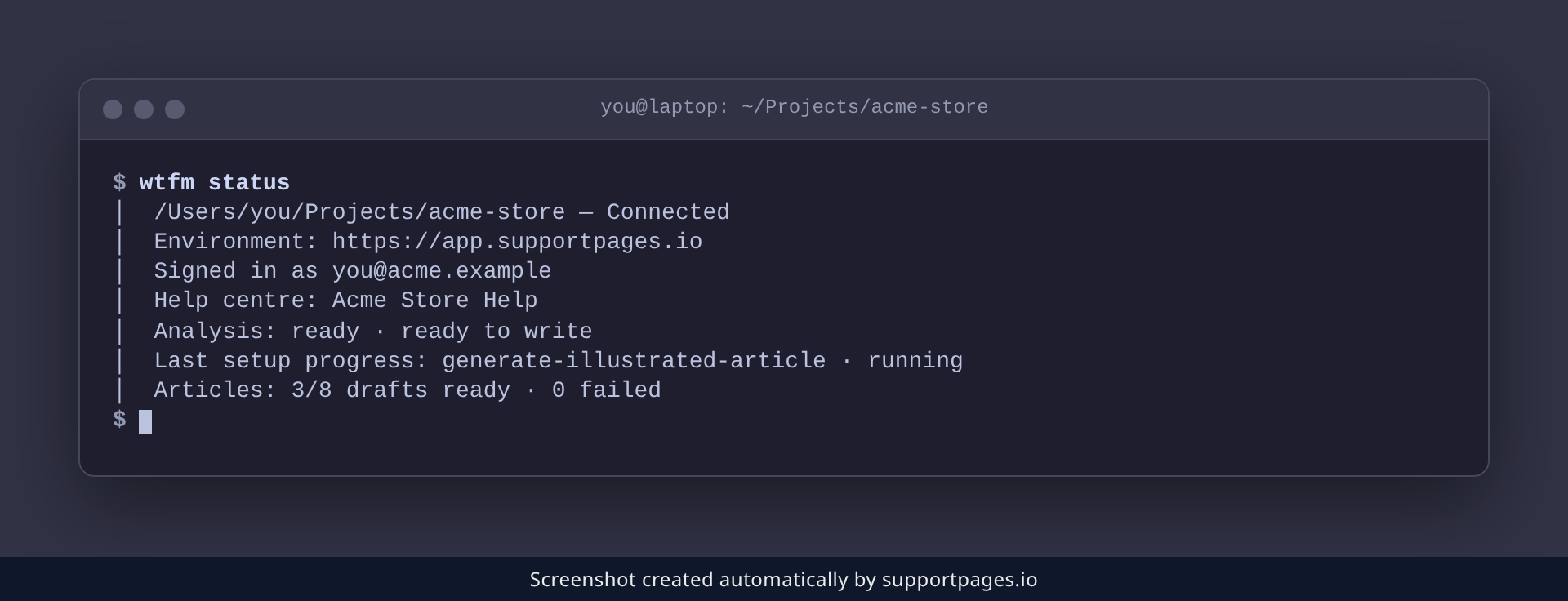
No arguments are needed — it prints this folder's connection, help centre, analysis state, and last reported progress.
Read what it reports
The first line pairs the project folder with its connection — Connected means the folder is linked to a help centre. Under it you get the Environment, the account you are Signed in as, and the Help centre the folder writes to. Analysis shows whether the project has been read and is ready to write, and Last setup progress with the Articles count shows where the most recent run stopped.
Tips
-
Add
--jsontowtfm statuswhen another tool needs to read the result. -
If the report shows a run that is still going, give it a moment and run
wtfm statusagain. -
For a deeper check of the whole installation, run
wtfm doctor.
Summary
wtfm status is your quick look at the project — connection, help centre, analysis state, and progress, all from one command.
Was this article helpful?
Built with supportpages.io, a help centre generator for developers — written from your codebase.
Have a question?
Search our articles, or ask and get an answer straight away.