
How to publish or unpublish an article
Updated about 2 months ago
Browse All
Publishing makes an article visible in your help centre. Unpublishing takes it back down again while keeping it safe as a draft, so you can let readers in exactly when you're ready.
Before you start
- A SupportPages.io help centre linked to this project.
- The article saved there as a draft, with its review link to hand.
- Your coding agent open in this project, signed in with publishing permission.
Steps
Publish the article
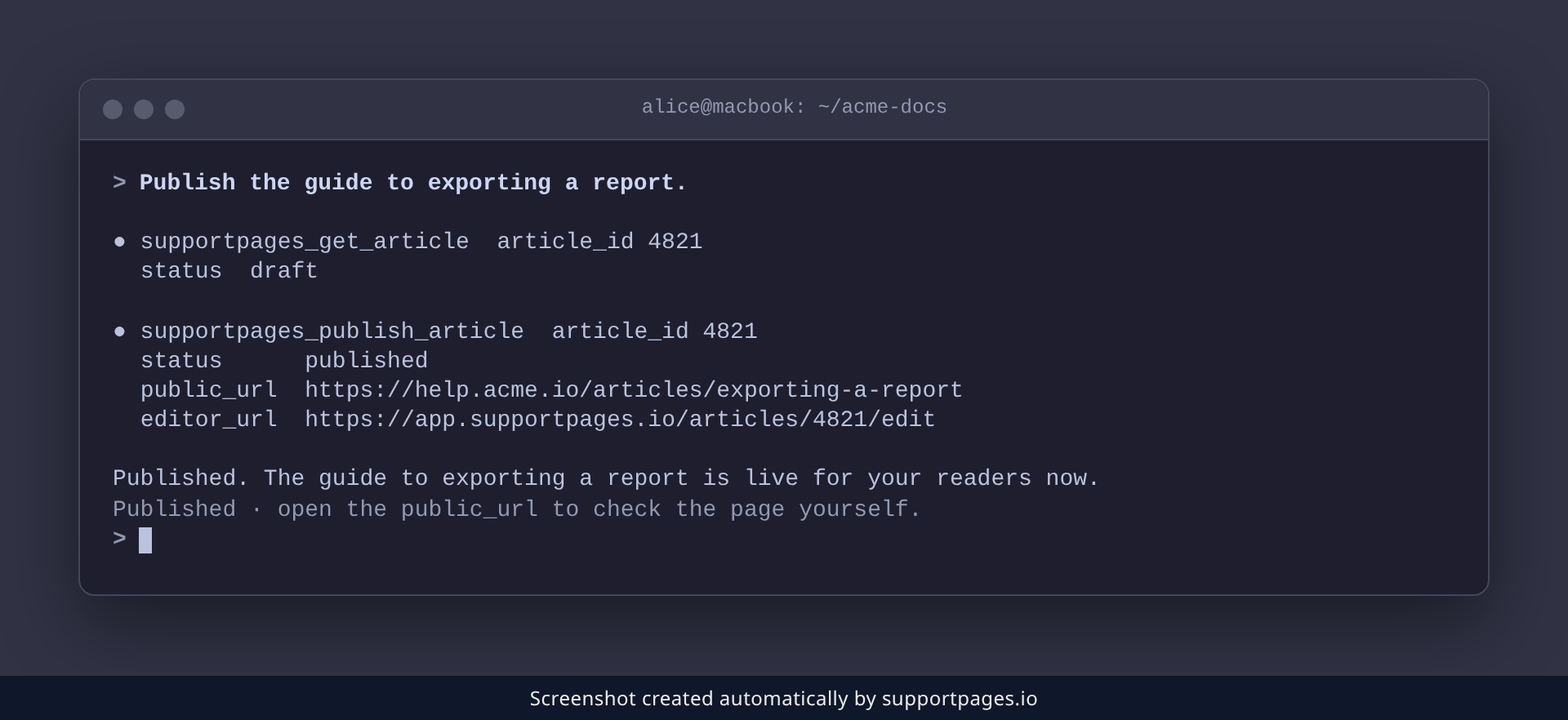
Ask your coding agent to publish it, naming the article you mean:
Publish the guide to exporting a report.
Your agent publishes the article's latest version. The reply gives you the public URL, so you can open it and see the page your readers will get.
Unpublish the article
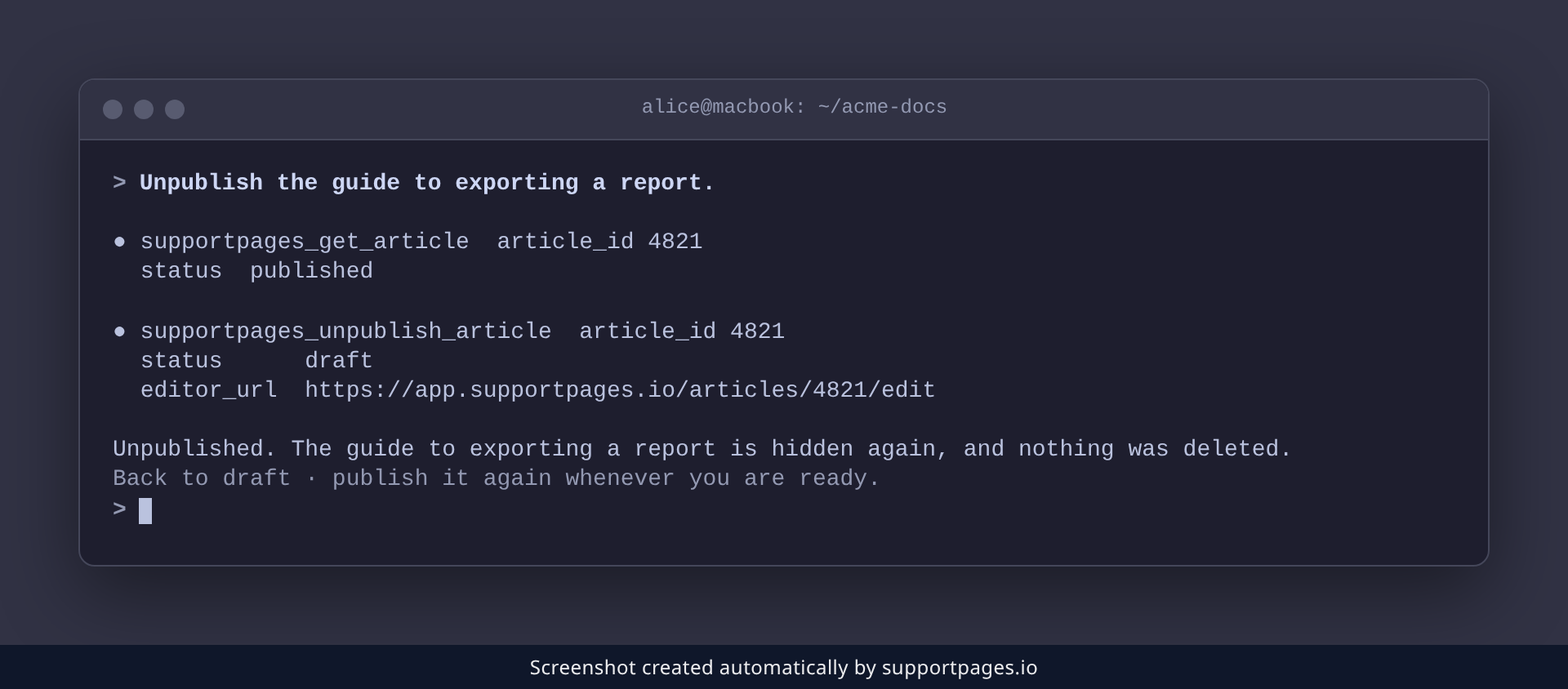
Spotted something to fix, or launching later than you thought? Ask your agent to take it down:
Unpublish the guide to exporting a report.
The article goes back to a draft. It disappears from your help centre, but nothing is deleted — its images and formatting stay with it, ready to publish again.
Working in the editor instead
Every article also has a review link that opens it in the SupportPages.io editor. From there you can read the draft the way your readers will, and publish or unpublish it by hand whenever you would rather not ask your agent.
Tips
- Publish and unpublish the same article as often as you like — there is no limit.
- An article keeps its public URL after you unpublish it, so republishing later does not break links you have shared.
- Ask your agent which articles are live whenever you want the whole picture at a glance.
Summary
Publishing puts an article in front of your readers, and unpublishing quietly pulls it back without losing anything. Name the article you mean, and your coding agent takes care of the rest.
Was this article helpful?
Kept in sync by supportpages.io — continuous documentation for your product.
Have a question?
Search our articles, or ask and get an answer straight away.