
How to change the article folder
Updated about 2 months ago
Browse All
WTFM keeps every finished article in a folder inside your project, and you can point it somewhere else whenever you like. If your repo already has a home for docs — docs/help, say — here's how to send new articles there instead of the default output/articles.
Before you start
-
WTFM is set up on this computer. If it isn't yet, run
wtfm setupfirst. -
This project saves articles locally — you chose Save them in this project without an account when you ran
wtfm init. - A terminal is open in your project's folder.
Steps
Open this project's settings
In your project folder, run:
wtfm configure
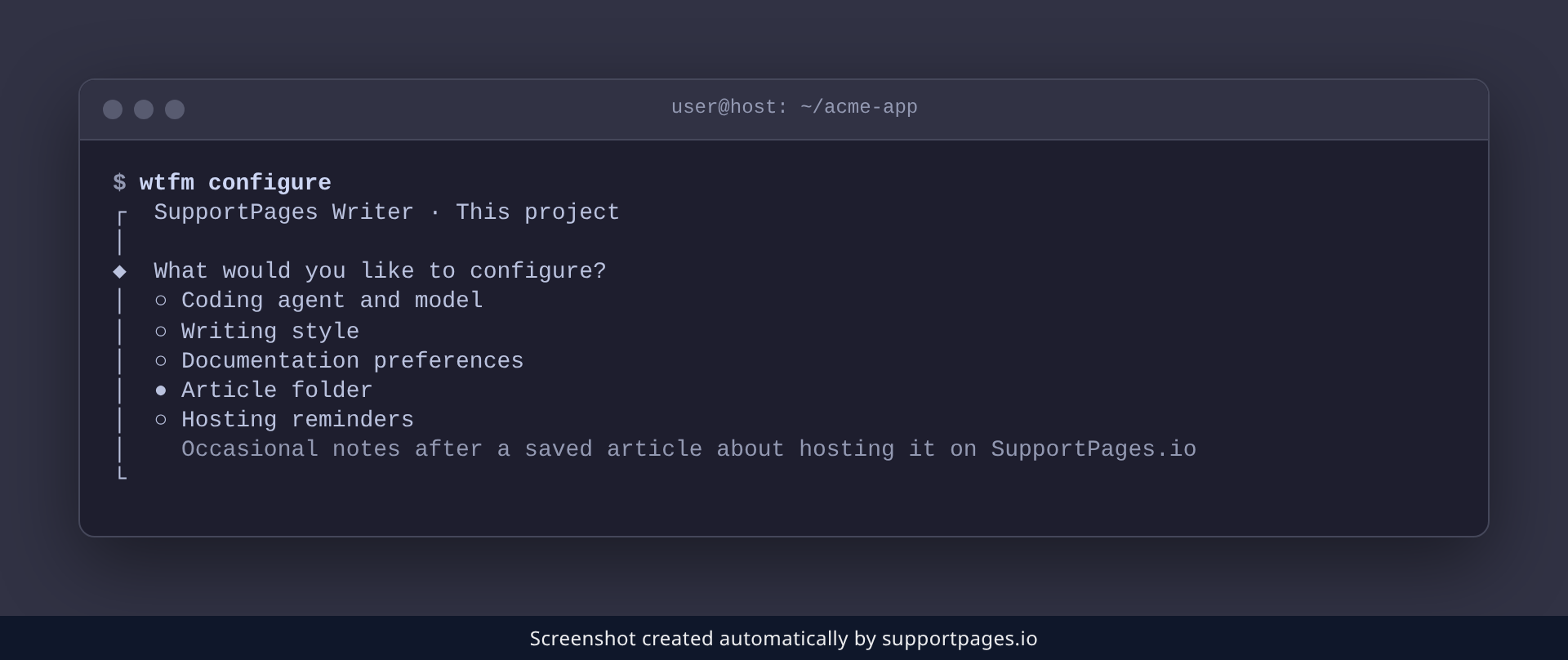
WTFM opens a menu of the settings you can change for this folder.
Choose Article folder
Pick Article folder from the menu and press Enter. WTFM asks where finished articles should go.
Type the folder you want
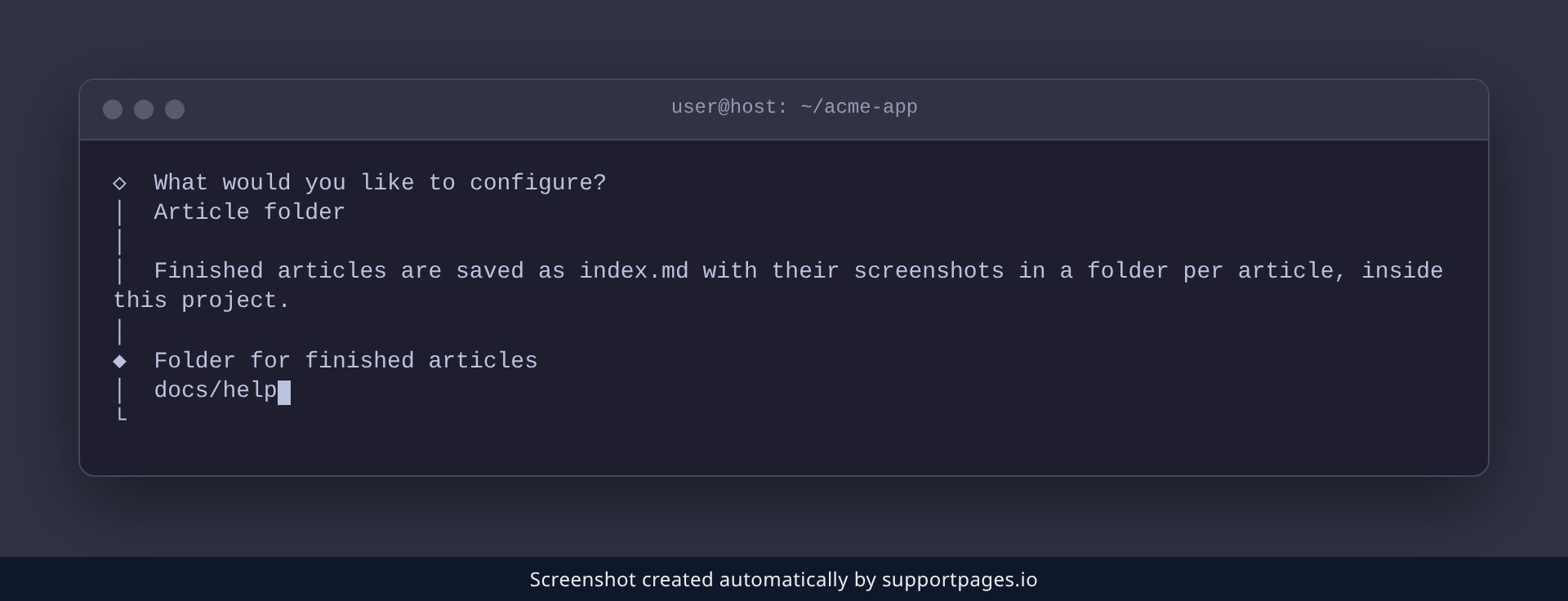
Type a folder inside this project, such as docs/help, and press Enter. WTFM only saves inside the project, so leave off any leading / or ...
WTFM confirms where finished articles will now be saved — from then on, each article goes in its own folder there, as index.md alongside its screenshots.
Tips
-
Changed your mind? Run
wtfm configure, pick Article folder, and point WTFM at a different one. - The new folder is used the next time WTFM writes an article — anything already saved stays where it is.
-
Not sure where articles go right now?
wtfm statusshows the folder this project saves to.
Summary
WTFM now saves finished articles in the folder you chose. Run wtfm configure any time you want to point it somewhere new.
Was this article helpful?
Maintained by supportpages.io, a self-updating help centre for SaaS teams.
Have a question?
Search our articles, or ask and get an answer straight away.